The web app is Nostr Vault in a browser tab, with nothing to install. Open nostrvault.app/vault/ in any up-to-date browser, on a computer or a phone.
Like the apps, it runs your own relay, here inside the browser. Your notes and messages are kept in this browser's storage.
New to Nostr
Click Create an account. The web app makes your keys in this browser and shows both. Save the secret key somewhere safe, tick I saved my secret key, and choose a password. Add a name and photo if you like, pick some people to follow, and click Start Exploring.
The secret key stays in this browser, locked with your password; it is never sent anywhere. To see it again, open Settings → Your Secret Key and type your password. Signing out, or the browser clearing this site's data, deletes it from this browser, and nobody can recover it for you. The web app can't sign in with a secret key, so to use the account again, add the copy you saved to a Nostr browser extension and click I already use Nostr, or import it in the Nostr Vault app.
Sign in
Already use Nostr? Click I already use Nostr. The web app never asks for the secret key of an account you already have. Sign in with something that holds the key for you:
- A browser extension. If a Nostr signing extension is installed in this browser, Sign in with extension shows. Click it and approve in the extension. On iPhone and iPad, use Safari with Nostr Build Shack or Nostash.
- A remote signer. Paste a bunker:// link from your signer app into Bunker link (NIP-46), click Connect bunker, and approve the connection in your signer. See Signers.
- Read-only. Type your name, npub or name@domain and click Find me. You can read your feed but not post.
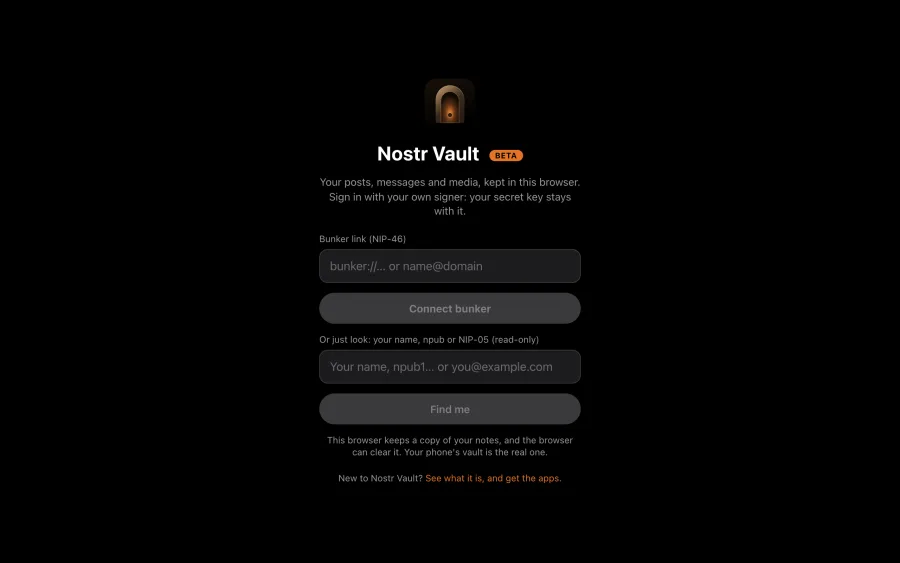
Accounts you've used in this browser are listed at the top next time, so one click signs you back in.
Opening a shared post
A post shared from Nostr Vault opens in the web app, and anyone can read it without signing in. The top says Viewing as a guest. Click Sign in there to reply, like or zap. A guest's browser keeps nothing once the tab is closed.
Find your way around
The same places as the phone apps: Feed, Search, Profile, WoT and Vault. On a phone they're a tab bar at the bottom; in a wide window they're a sidebar, and a post opens next to the list. Settings is the gear on your profile.
Browsers
The web app runs in Chrome, Edge, Firefox and Safari. On iPhone and iPad it needs iOS 16.4 or later, and on a Mac Safari 16.4 or later; keep other browsers up to date. An older browser shows a blank page.
- It needs WebAssembly and site storage (IndexedDB). Lockdown Mode on iPhone, iPad or Mac turns WebAssembly off, so the app says Your relay didn't start. Turn Lockdown Mode off for nostrvault.app in its web browsing settings.
- A private or incognito window deletes everything when it closes.
Your data in this browser
Your relay, notes, messages and drafts live in this browser's storage on this device, not on our server. After you sign in the app asks the browser to keep them. The Relay screen shows how much space they take and the browser's answer: Kept on this browser or This browser may clear it.
- Settings → Backup & Restore → Export notes saves your notes, private notes, messages and feed cache as a .zip, the same file the phone apps make. Photos and videos aren't in it.
- Import notes puts a .zip back into this browser, from the web or a phone. Nothing is published.
- Under This browser's copy, Sign out and delete this browser's copy removes everything this browser holds. Your phone's vault is untouched.
Clearing your browser's site data deletes the web app's copy too. Your posts are still on public relays and in your phone or Mac vault.
Safari deletes this copy after 7 days without a visit. That's every browser on iPhone and iPad, and Safari on a Mac. To keep it, add Nostr Vault to your Home Screen (Share → Add to Home Screen) or, on a Mac, the Dock (File → Add to Dock), and open it from there.