Your Nostr profile keeps a list of where your media lives. Nostr Vault on your Mac can add itself to that list, written as its mesh address. Apps that can use the mesh then load your photos straight from your Mac. Apps that can't skip it and use your other media servers, as before.
Turn it on
- On the Mac, open Settings → FIPS Mesh and switch on Mesh. The mesh engine runs inside the Mac app; there's nothing else to install.
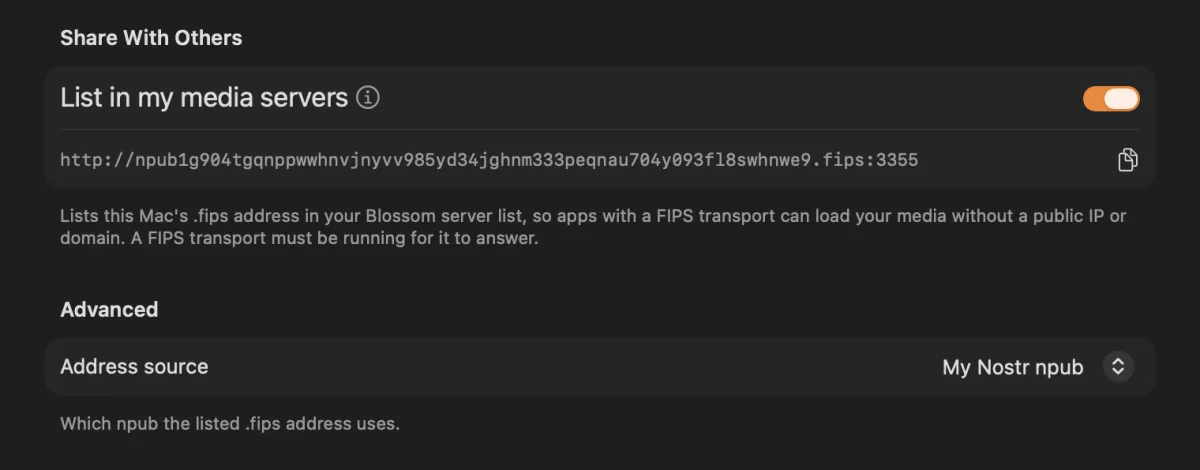
- Under Share With Others, turn on List in my media servers.
- Keep Nostr Vault open. In Settings → Startup, turn on Launch at Login and Start Relay Automatically so it's always there.
Who gets what
- Your own devices in My Devices reach the Mac's vault in full.
- Anyone else can only open photos and files by their link, at up to 1 MB/s. They can't read your notes or change anything.
- Your photos still go to your normal media servers too. The Mac is one more place they can come from, and the one you own.
Privacy
- Your home IP isn't published. The list holds the Mac's mesh key, and the mesh finds it by key.
- Listing it does link your npub to the Mac's mesh key, in public. Removing it later doesn't erase older copies of your list that relays may still hold.
- Under Advanced, Address source picks which key the listed address uses. My Nostr npub is the usual choice.
More on how photos are checked on the way: The mesh.