Removing a device from My Devices stops it reaching this device's vault. Do it on every device that has it on its list.
Remove a device
- Open Settings → Mesh → FIPS Mesh and tap the device under My Devices. On the Mac, use the remove button on its row.
- Tap Remove from my devices and confirm.
- Repeat on each of your other devices.
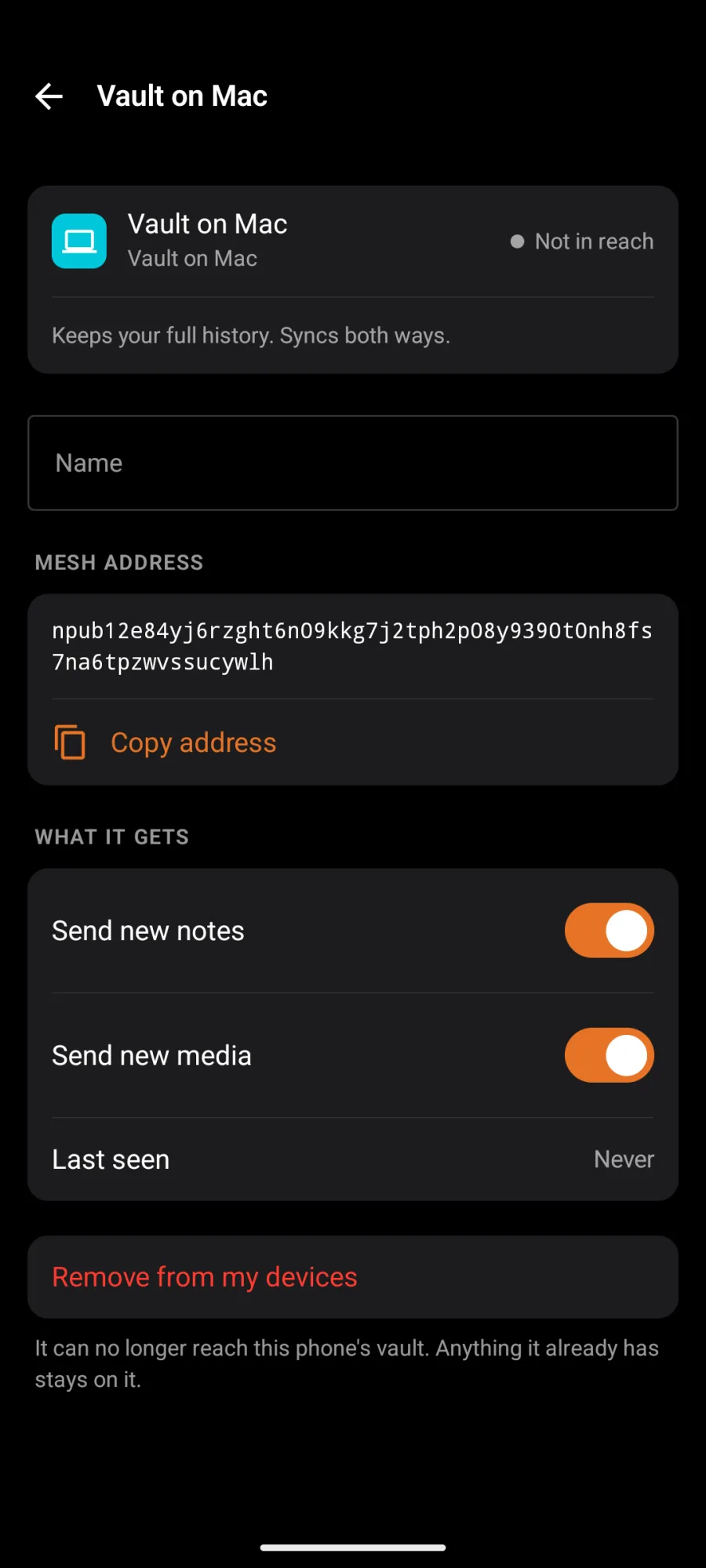
What changes:
- It can no longer reach this device's vault, or learn its address.
- New notes and media stop going to it. A home vault also leaves your media server list.
- Anything it already has stays on it. Removing a device doesn't wipe it.
A lost or stolen phone
- Remove it from My Devices on your Mac, your home vault and your other phones, as above.
- Signer: if the phone signed through a signer app, revoke its connection in the signer. Your key was never on the phone.
- Local key: if your secret key was on the phone, it's locked with your key password. Someone with the phone still needs that password. If you think they have it, treat the key as exposed: a Nostr key can't be changed, so make a new account and tell people to follow it.
- Set up the new phone: sign in with your key or signer (iPhone, Android), then add it to My Devices on your other devices. Your notes come back from your relays, your Mac or your home vault.
Your public posts are on public relays and stay there. A lost phone loses only what nothing else holds a copy of, which is why a Mac or home vault is worth having.