On a Mac, Nostr Vault lives in the menu bar and runs your own Nostr relay while it's open. Leave it running and your Mac becomes the always-on home for your notes and media.
Install
Nostr Vault needs macOS 14 (Sonoma) or later. Download it from
the latest release on GitHub (the
NostrVault-macOS-….zip file), unzip it, and drag Nostr Vault into Applications.
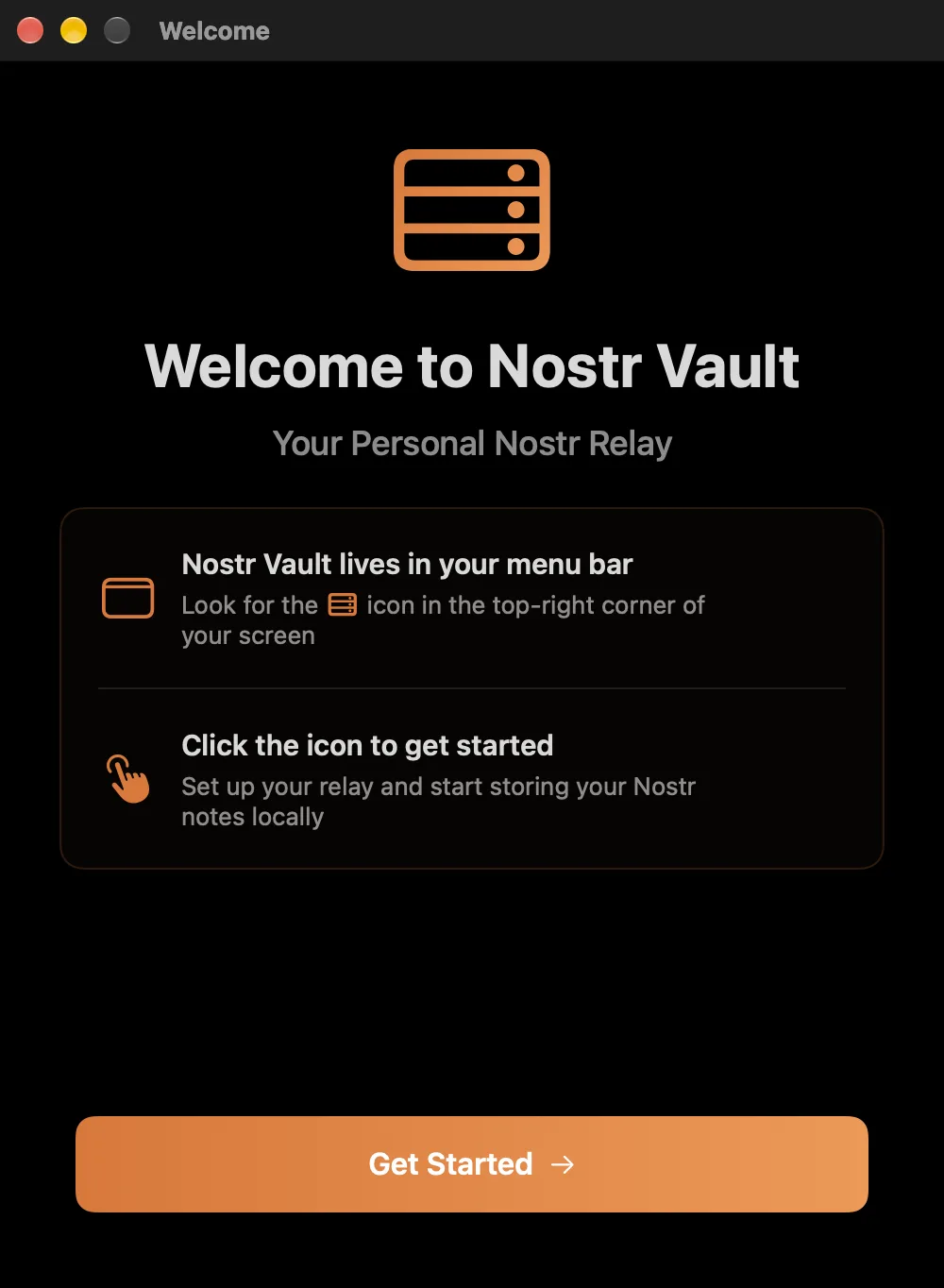
The first time it opens, a Welcome to Nostr Vault window says Nostr Vault lives in your menu bar. Click Get Started. Setup opens next.
Pick a way in
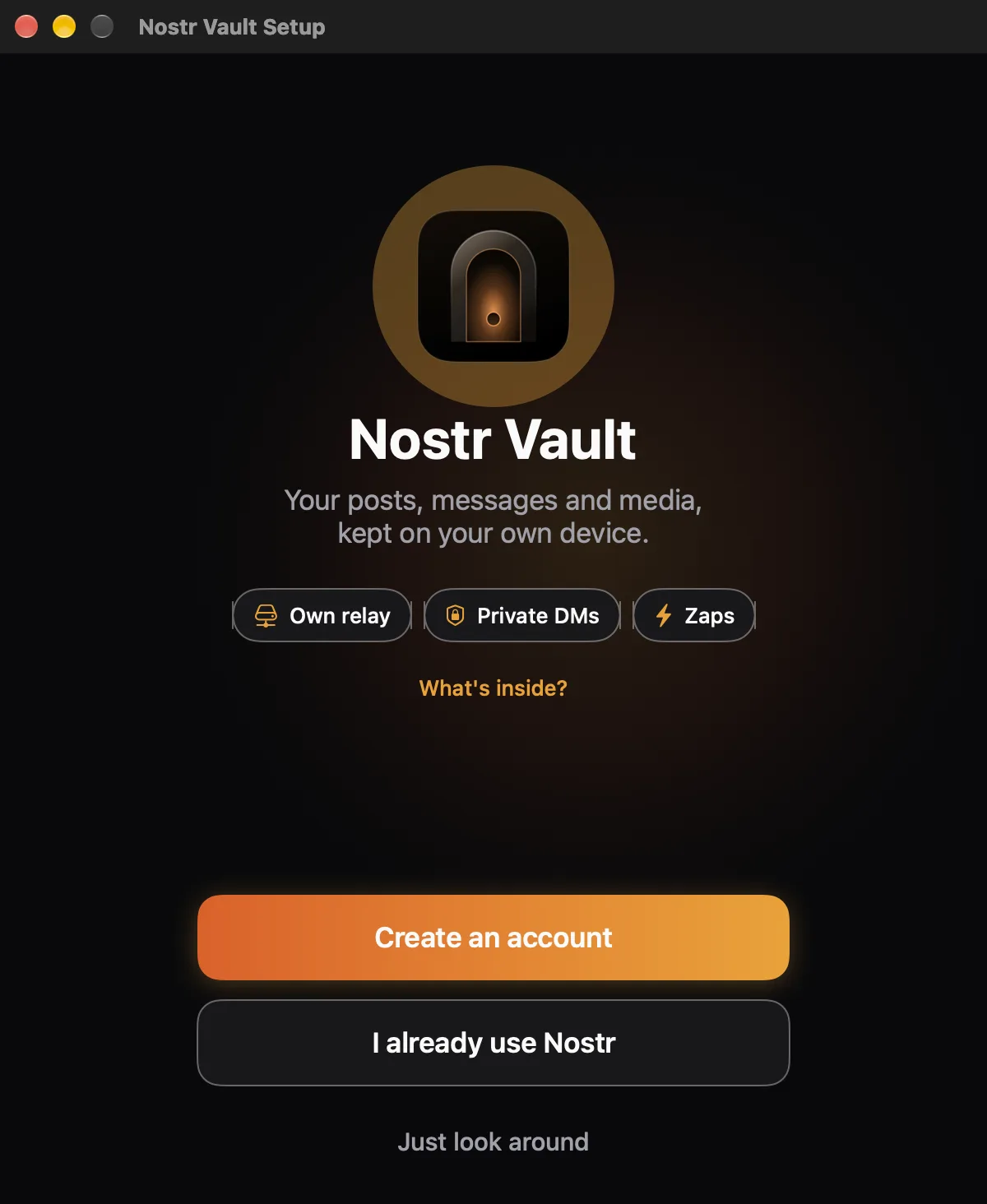
- Create an account if you're new to Nostr.
- I already use Nostr to bring your account, your notes and your media.
- Just look around to read with your public key only.
Create an account
The same steps as on the iPhone: Create My Account, save your secret key on Your Keys and tick I saved my secret key, choose a password on Protect Your Key, then a photo and name on Your Profile (or Skip for Now), and Start Exploring. The details are on Get started on iPhone.
About the password on Protect Your Key: This password locks the secret key you just saved. It stays on this device only and is never sent to us or any server. We cannot recover or reset it. If you forget it, the secret key you saved is your only way back in.
Bring the account you have
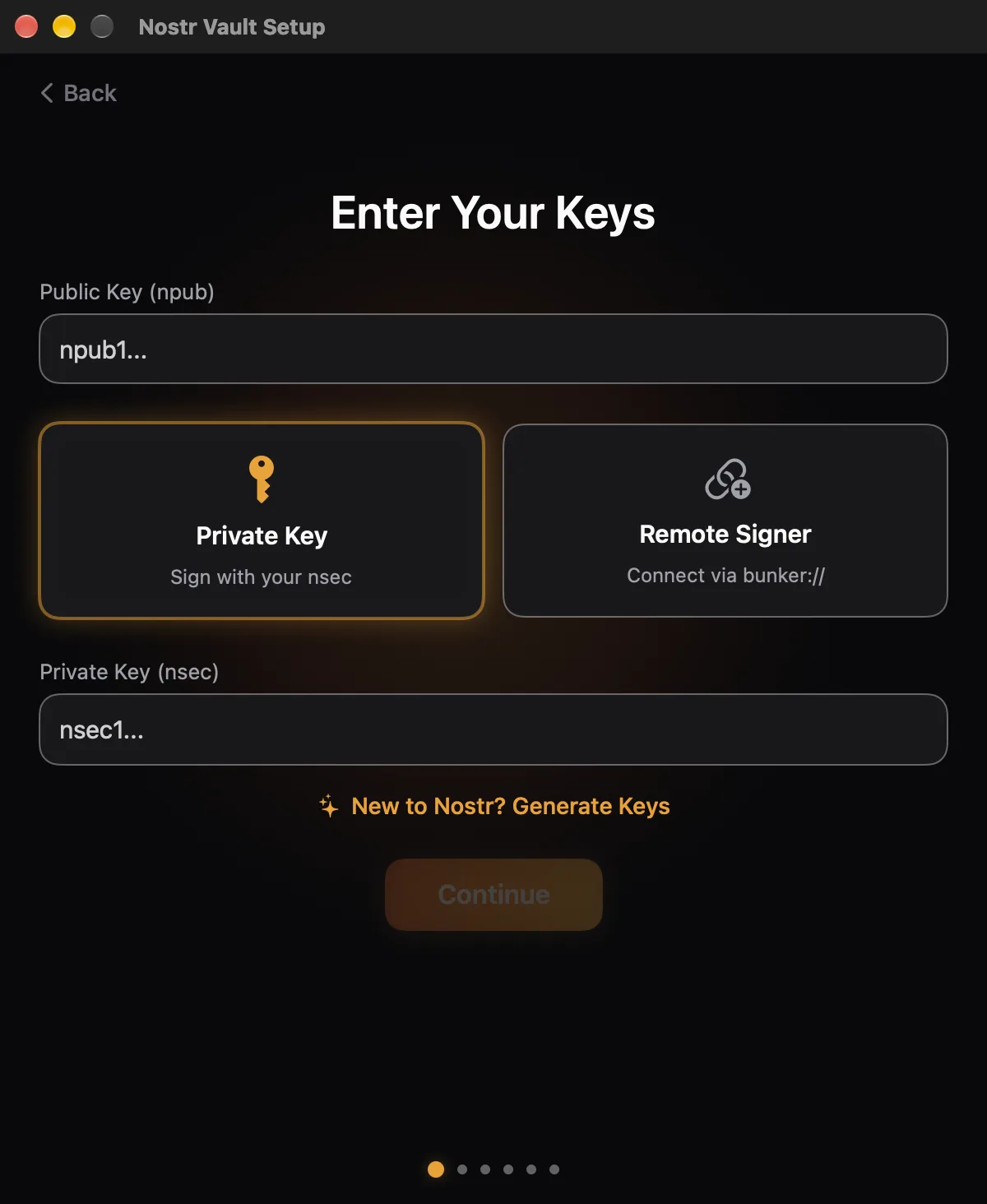
- Enter Your Keys. Pick how you sign:
- Private Key: paste your nsec and choose a password. The key is encrypted on this Mac.
- Remote Signer: Connect with Clave on your iPhone shows a code to scan with Clave. Or paste a bunker link from any signer app. Your key stays in the signer.
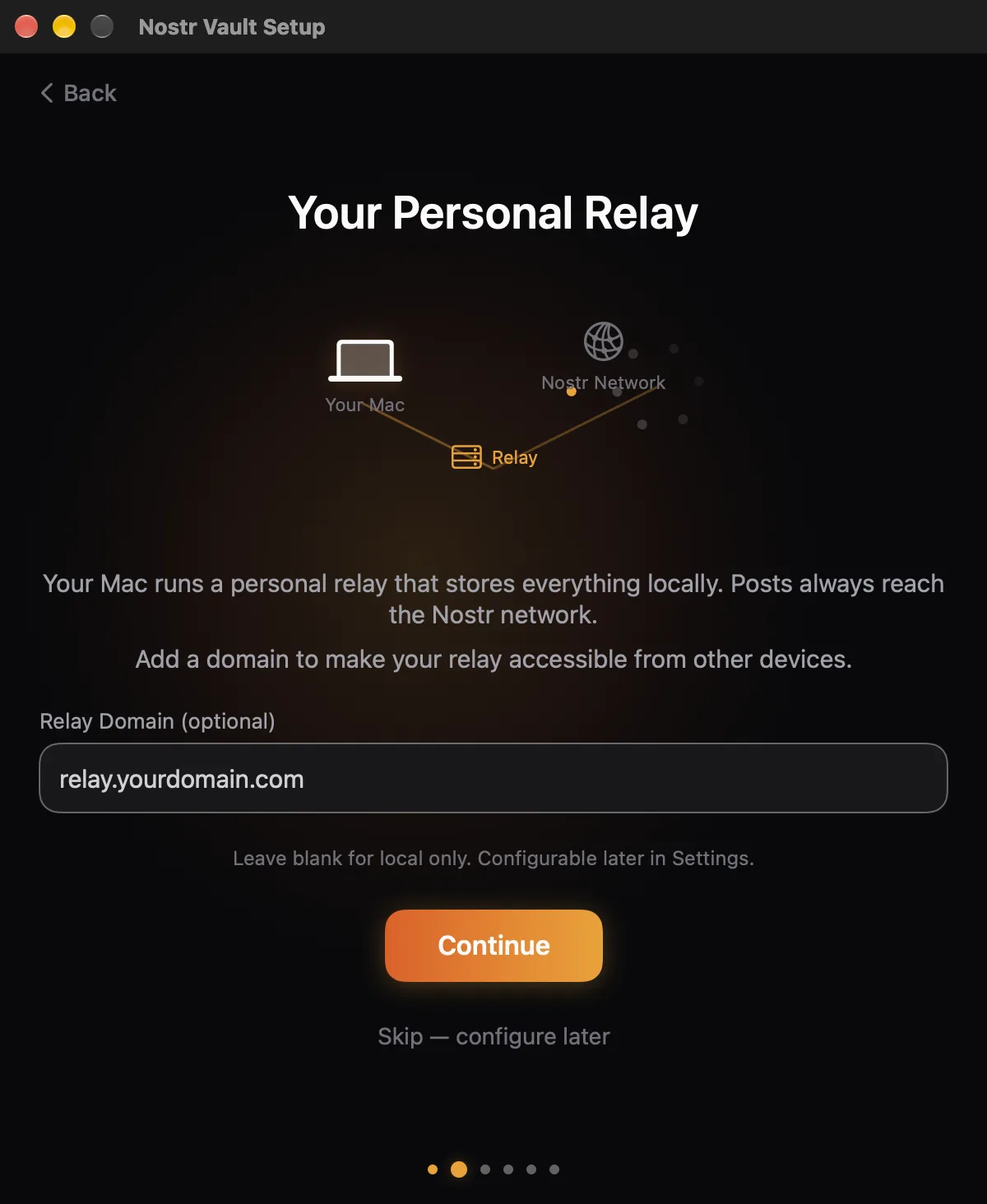
- Your Personal Relay. Your relay runs on this Mac either way. A Relay Domain (optional) makes it reachable from your other devices. Leave it blank for local only, or tap Skip — configure later.
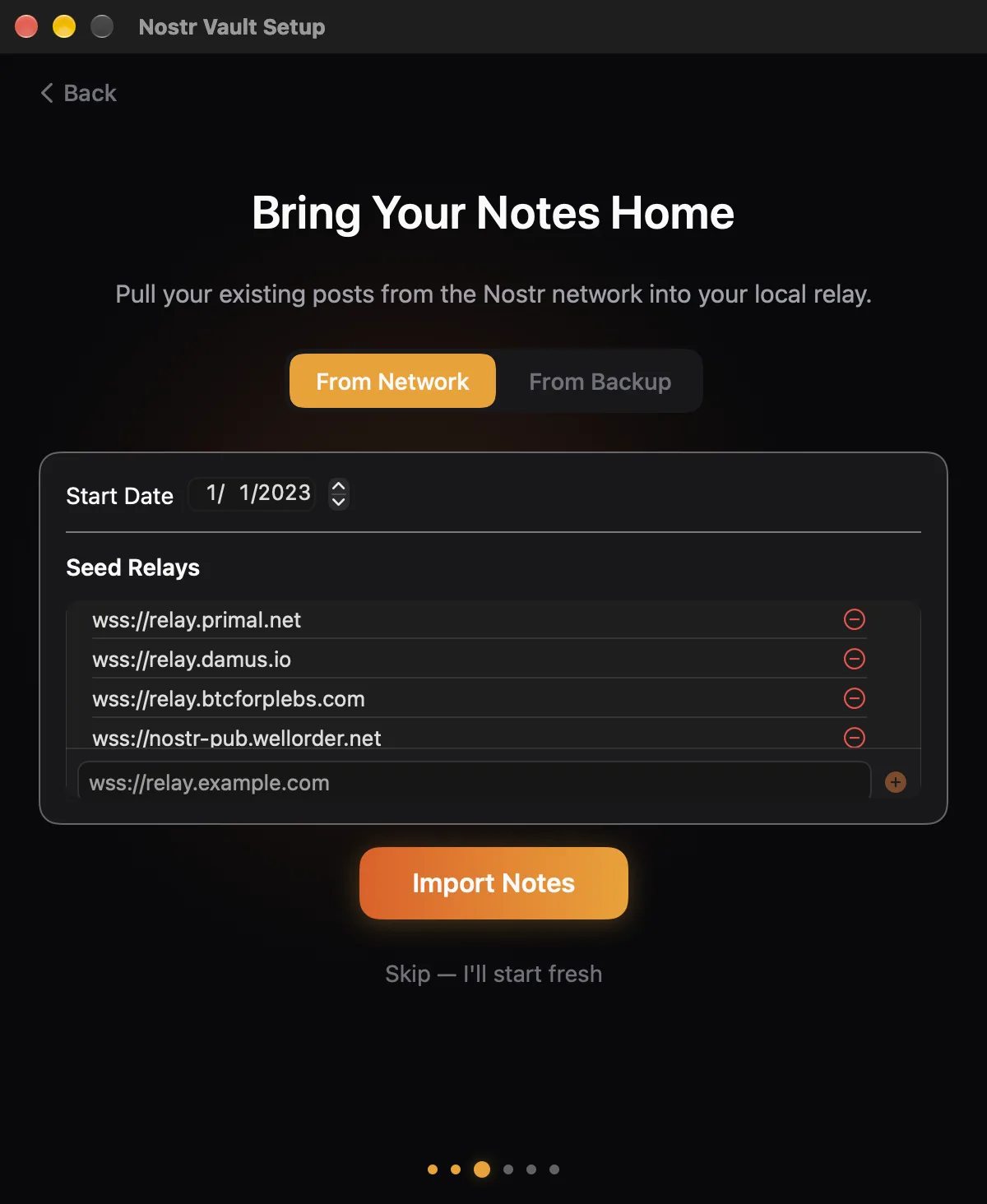
- Bring Your Notes Home. From Network copies your notes from public relays to this Mac; From Backup restores a Nostr Vault backup. Tap Import Notes, or Skip — I'll start fresh.
- Mirror Your Media. Copies your photos and videos from a Blossom media server, or from a backup, to this Mac. Tap Sync Media or Skip Media.
- Lightning (NWC). Paste a Nostr Wallet Connect link to send zaps, or Skip — set up later.
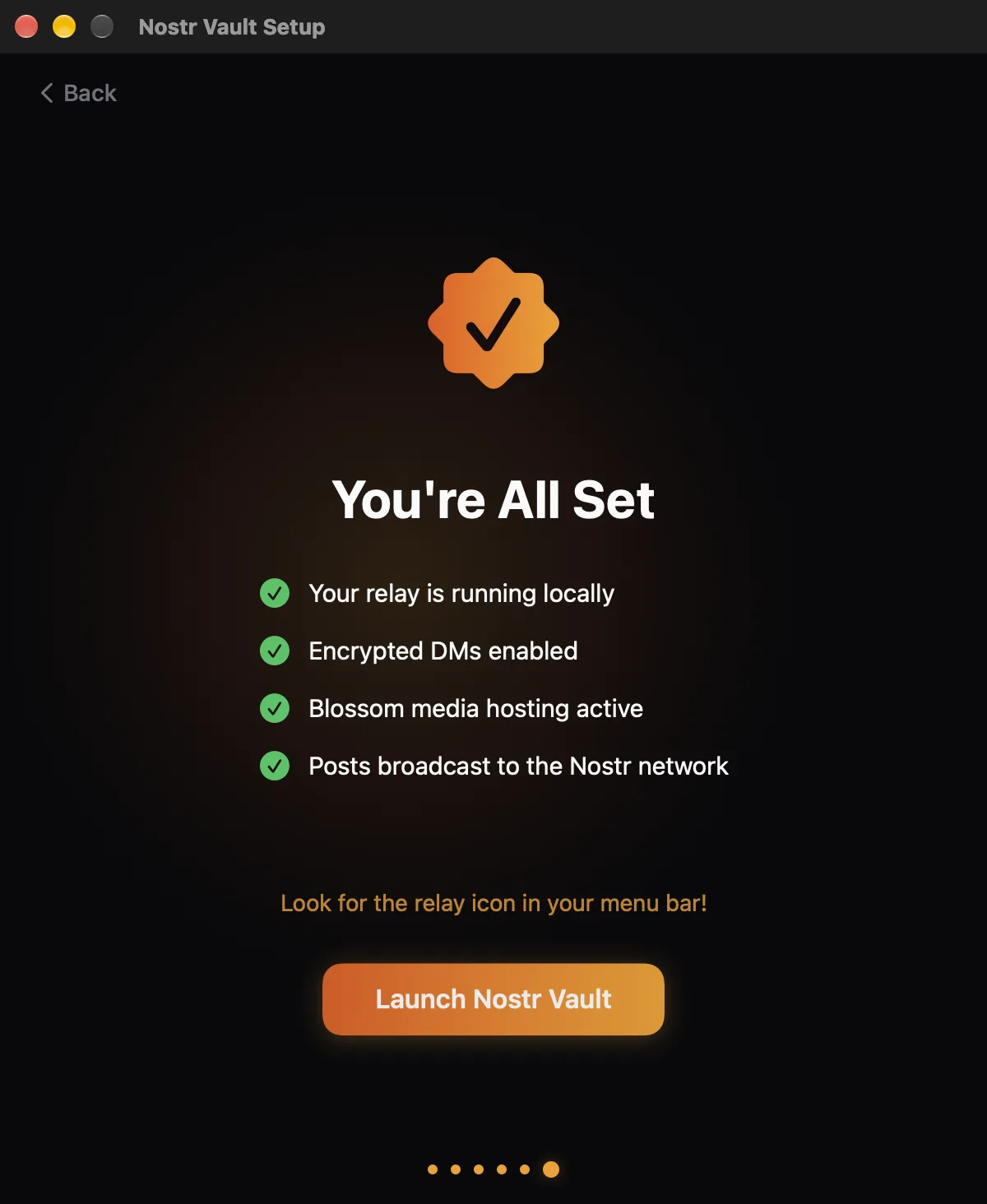
- You're All Set. Click Launch Nostr Vault.
Who told you about Nostr Vault?
Setup with a key you can post with asks who told you about Nostr Vault, just before the last screen. Paste their profile link or npub, check their profile card and follow them, then pick from up to 10 people they follow (all ticked to start). Skip, nobody told me leaves it out. On a Mac a profile link can't fill this in for you, so paste it. Details on Get started on iPhone.
Just look around
Enter Your Public Key (your npub or name@domain), import your notes if you like, and Ready to Browse opens the app. Re-run setup later to post, DM and zap.
Find your way around
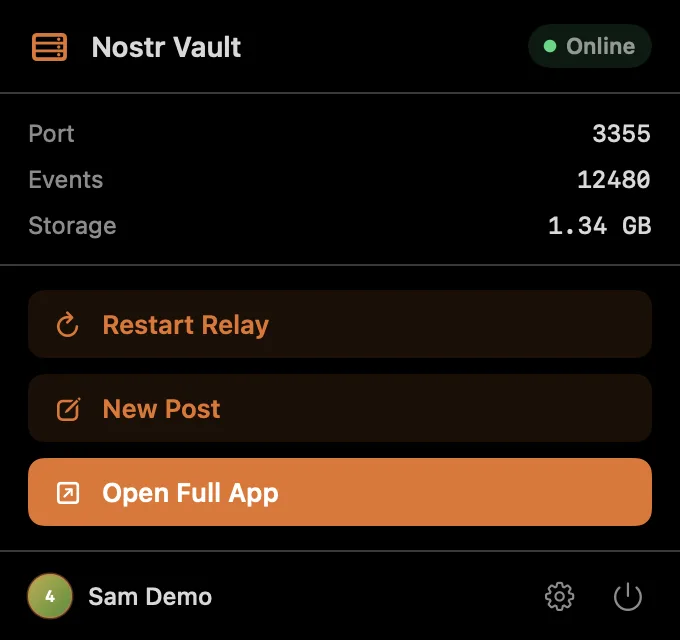
- Click the Nostr Vault icon in the menu bar. The panel shows your relay's status, your notes and your media.
- Open Full App opens the full window, with the feed.
- The gear at the bottom (Settings (⌘,)) opens Settings.
- Your relay runs while Nostr Vault is open. The power button next to it (Quit Nostr Vault) stops it.
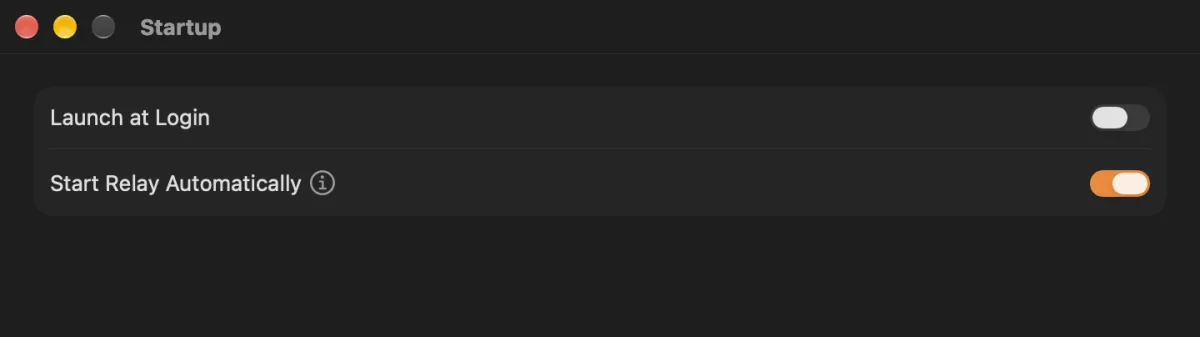
To keep it running, open Settings → Startup and turn on Launch at Login and Start Relay Automatically.
Next
- The mesh: make your Mac the photo server and vault for your phones.
- Your keys and accounts