A signer is a separate app that holds your secret key. When Nostr Vault wants to post, like or send a message as you, it asks the signer, and the signer approves. Your key never enters Nostr Vault, so a problem in Nostr Vault can't leak it.
Which signer, where
| Device | Signers | How it connects |
|---|---|---|
| Android | Amber, or any signer app on the phone | Use Amber, or Use a signer app → Sign in with a signer app |
| iPhone and iPad | Clave | Use a signer app → Sign in with Clave |
| Mac | Clave on your iPhone | Connect with Clave on your iPhone shows a code to scan |
| Web | A Nostr browser extension. On iPhone and iPad: Nostr Build Shack or Nostash in Safari | Sign in with extension |
| Everywhere | Any signer that gives a bunker link (NIP-46), such as nsec.app or your own bunker | Paste or scan the bunker:// link |
Sign in with a signer during setup
- Choose I already use Nostr. On iPhone and Android, the next screen has Use a signer app under the box (and Use Amber on Android when Amber is installed). On a Mac, choose Remote Signer.
- The signer opens, or a code shows on screen to scan with a signer on another device.
- Approve the connection in the signer, then come back to Nostr Vault. If the signer didn't open, tap Open Clave again (Android: Open signer again), or Copy link and open it yourself.
Or paste a bunker:// link from any signer app into the same box.
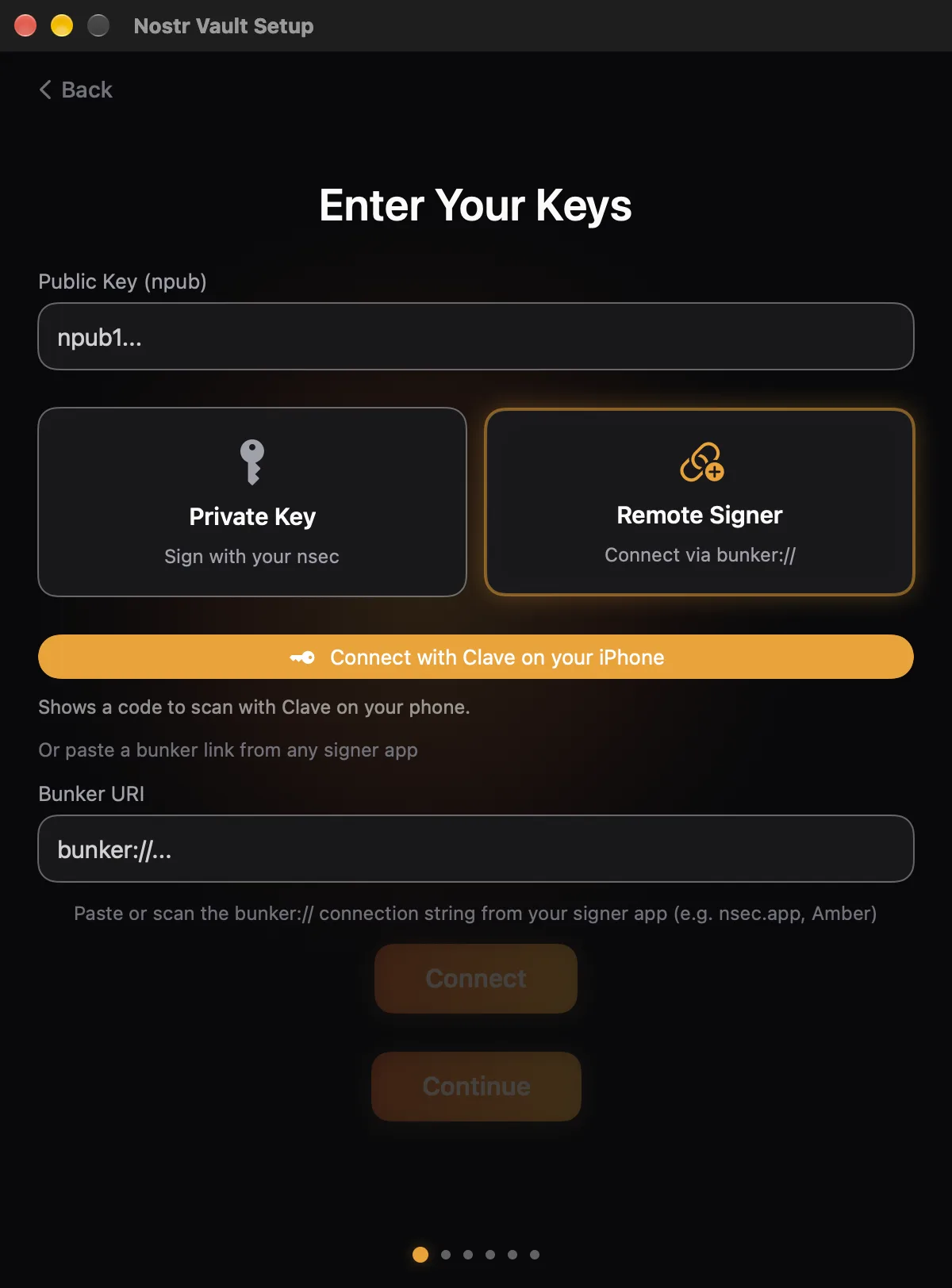
Add a signer to an account you already have
- Open Settings → Accounts & Keys and tap the account.
- Tap Connect Remote Signer.
- Paste the bunker link into Bunker URI, or scan its QR code. On iPhone you can Sign in with Clave here too.
- Approve the connection in your signer app.
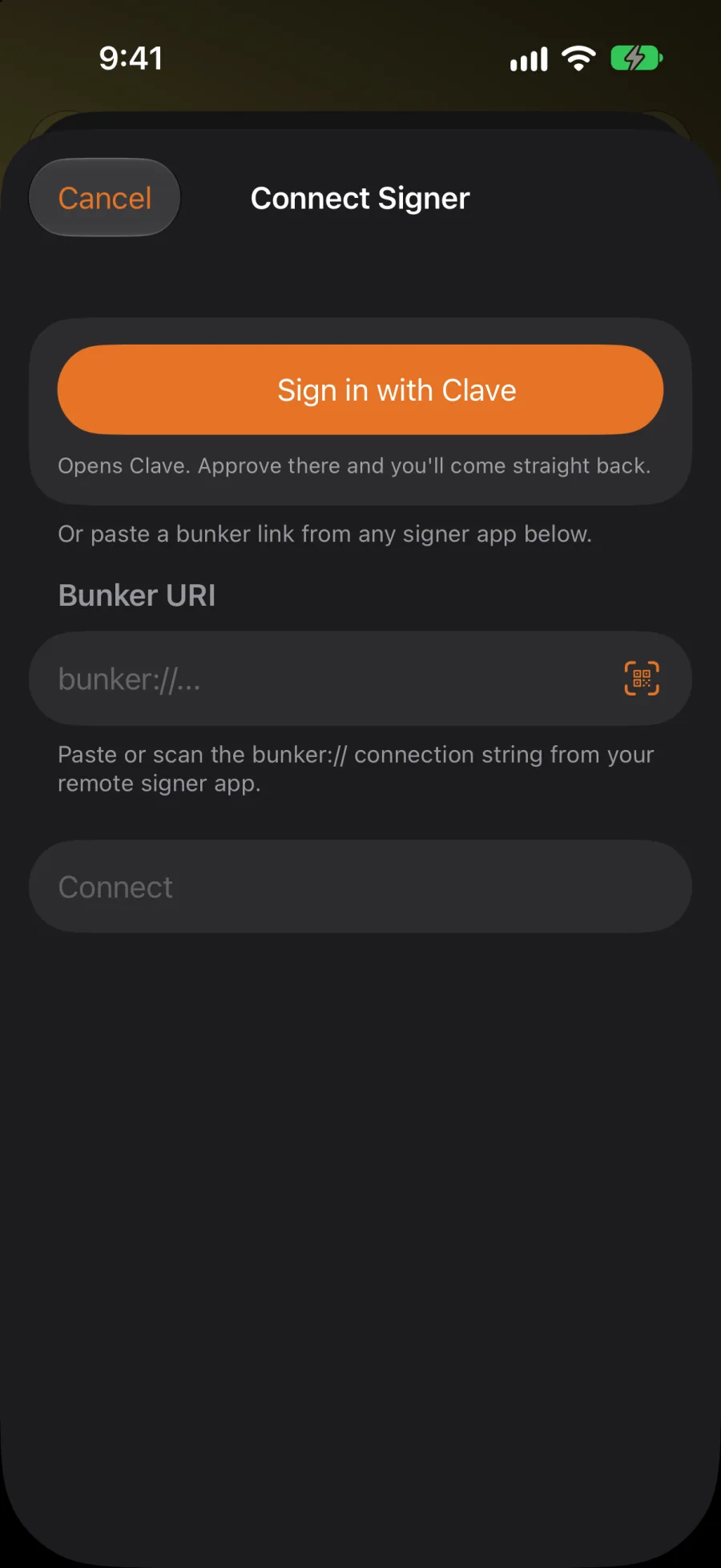
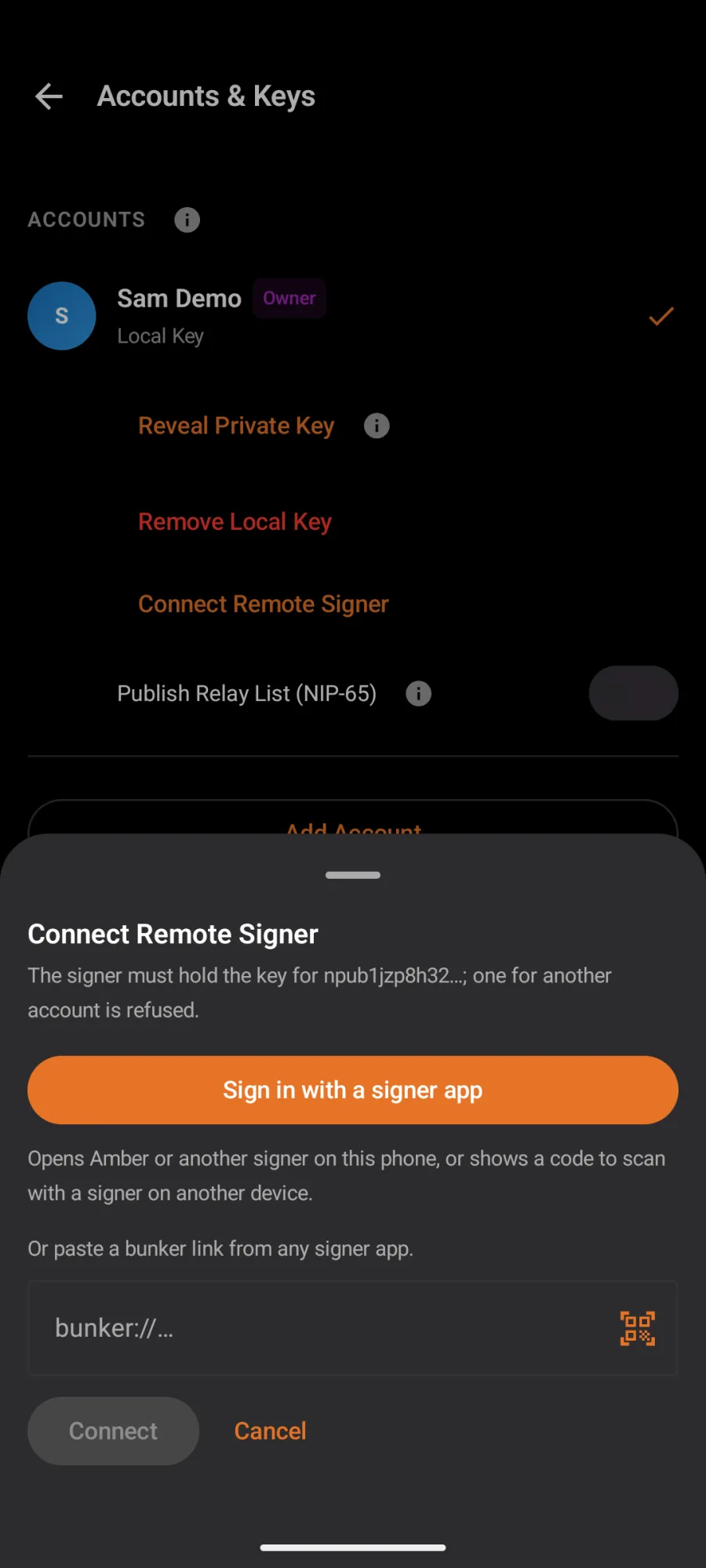
The signer has to hold this account's key. A signer for a different account is refused.
On the web
An account you already have signs on the web with a signer: a browser extension, or a bunker link in Bunker link (NIP-46) and Connect bunker. It never asks for that account's secret key. (An account made with Create an account on the web keeps its key in that browser, locked with your password: see Use Nostr Vault in a browser.) A bunker's connection to the browser is stored encrypted, and removing the account or signing out asks the bunker to drop it.
Good to know
- Posts, likes and messages are signed by the signer, which may ask you to approve each one. If nothing happens, open the signer and check for a pending request.
- To stop using a signer, open the account and tap Disconnect Remote Signer. Revoke the connection in the signer app too.
- Back up your secret key in the signer app. Nostr Vault can't show it to you, because it never has it.