A Nostr account is a pair of keys. Nostr Vault keeps them on your device, or leaves the secret one with a signer app, and never on a server.
Two keys
- Public key (starts with
npub): your name on Nostr. Share it freely. With only this, an app can show your feed but can't post as you. - Secret key (starts with
nsec): your password to Nostr. Anyone who has it can post as you, forever. Nobody can reset it or recover it for you, not even us.
Nostr Vault can sign for you in two ways:
- A local key. Your secret key, locked with a password you choose (at least 8 characters), and
kept on this device only. A key locked this way starts with
ncryptsec. This password locks your secret key. It stays on this device only and is never sent to us or any server. We cannot recover or reset it. If you forget it, your saved secret key is your only way back in. - A signer. A separate app holds your secret key and approves each post. Nostr Vault never sees the key. See Signers.
Where to find them
| Device | Open |
|---|---|
| iPhone, iPad, Android | Profile tab → gear → Accounts & Keys |
| Mac | Menu bar icon → gear → Accounts & Keys |
| Web | Settings → Accounts & Keys |
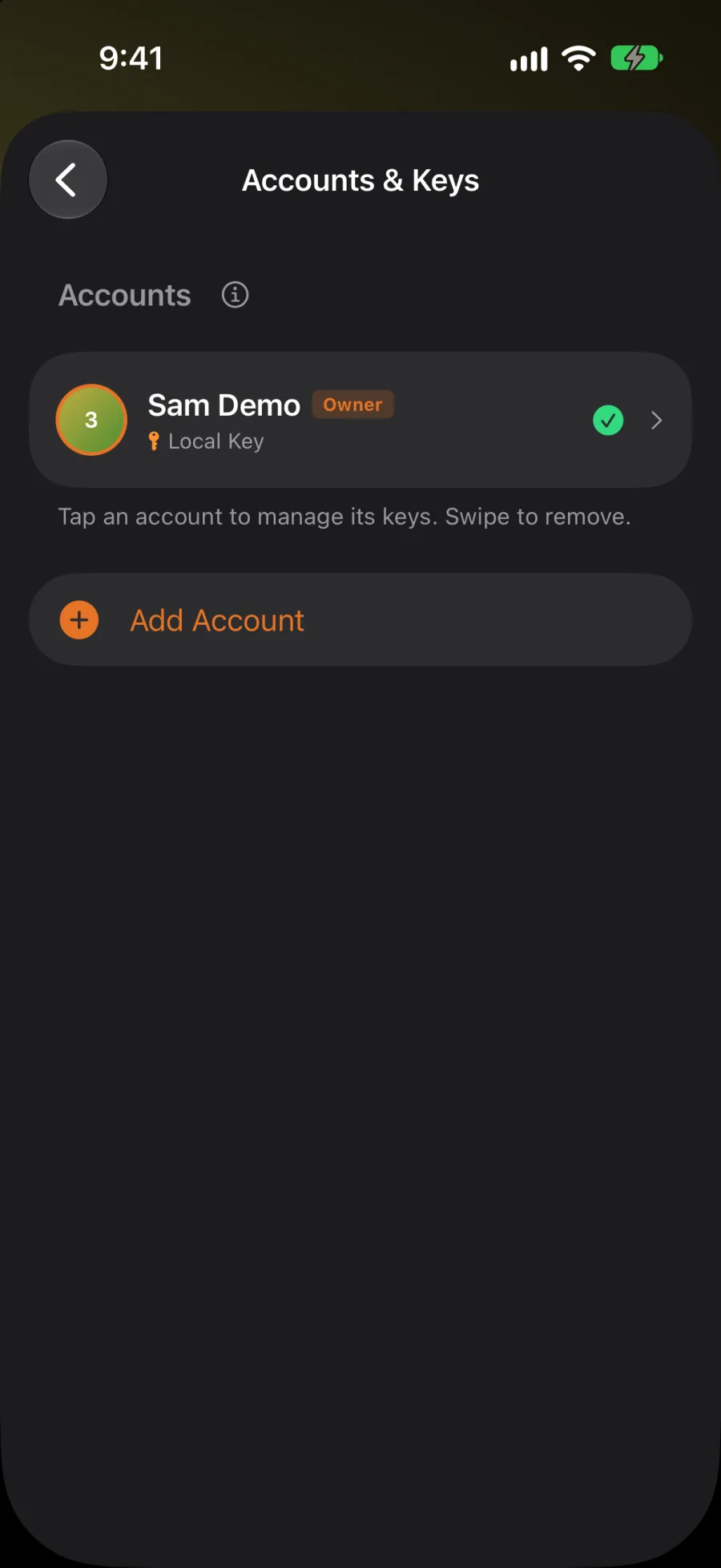
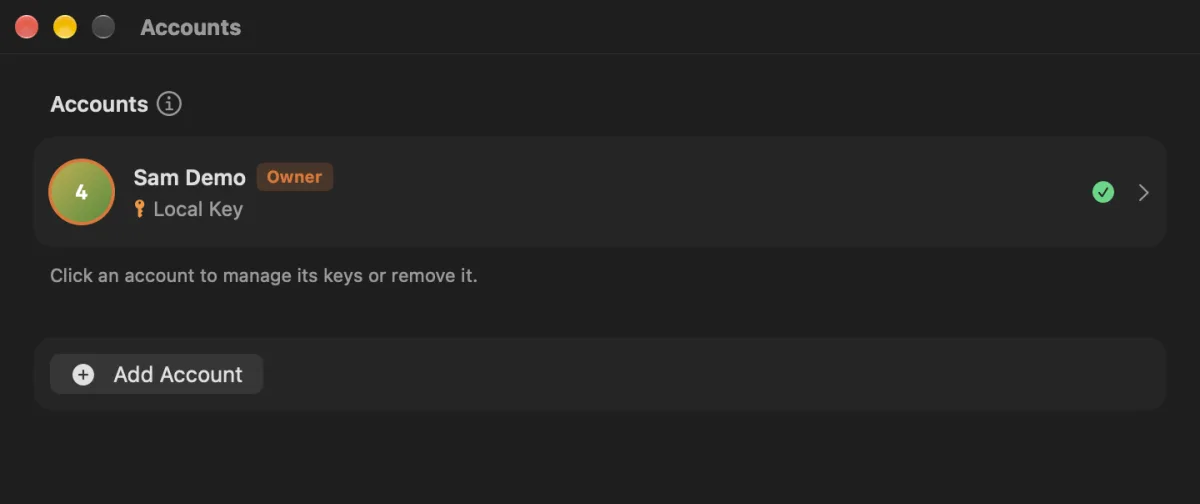
Each account shows how it signs: Local Key, Remote Signer, Amber (Android), or no signing key at all (read-only). The first account you set up is the Owner: it's the one your vault relay belongs to.
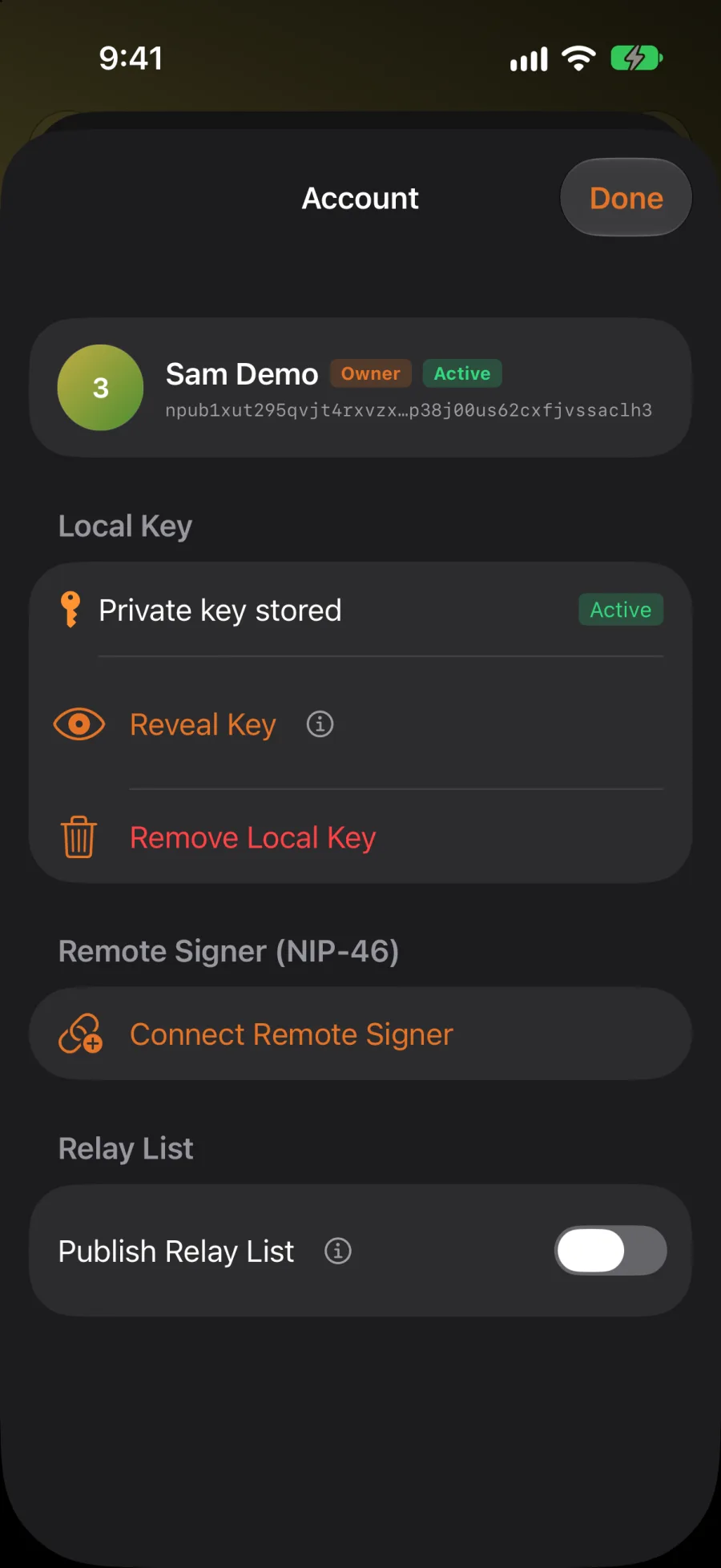
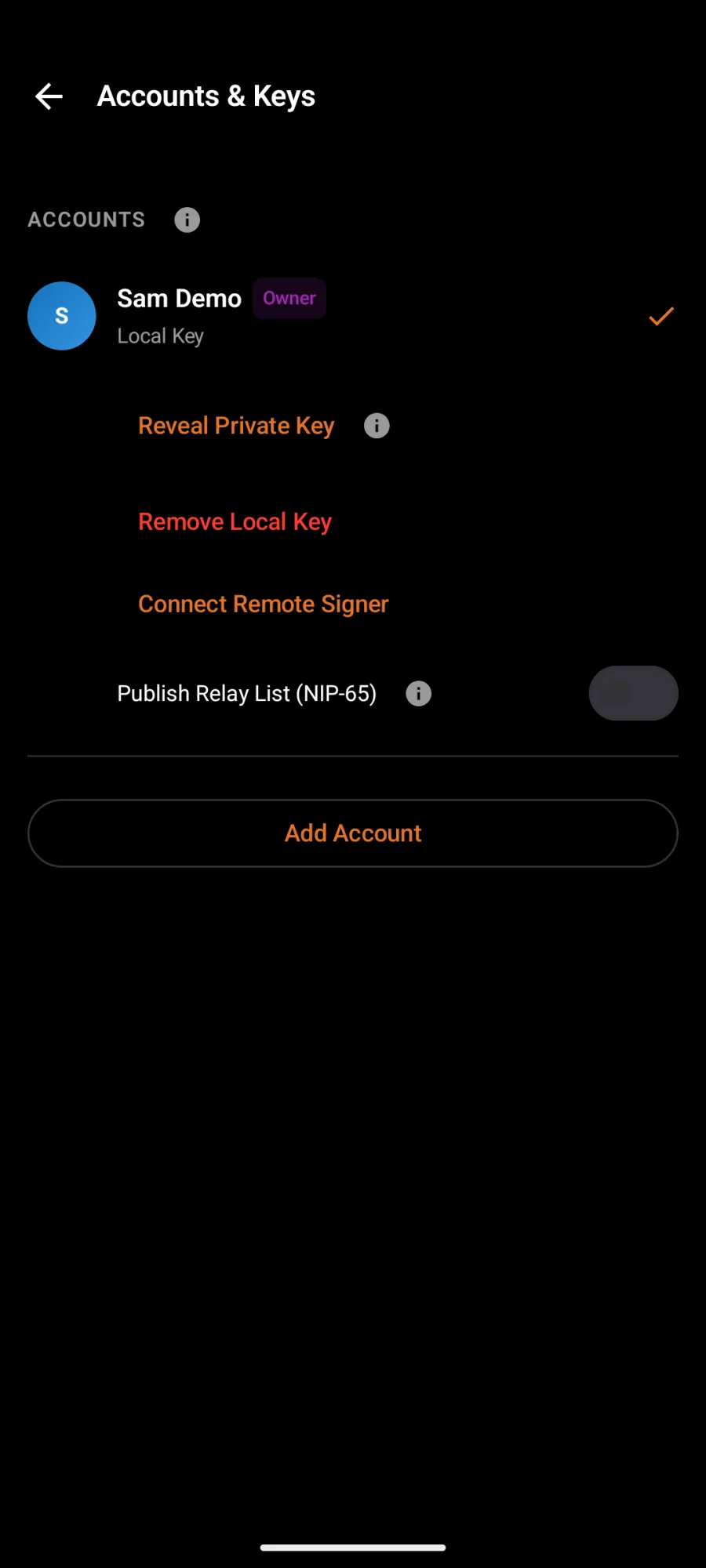
Tap an account to manage it. On iPhone, iPad and Mac it opens its own page; on Android its row opens in place.
Add another account
- In Accounts & Keys, tap Add Account.
- Paste the account's key.
- iPhone, iPad and Mac take its npub. Then open the new account and tap Import Private Key or Connect Remote Signer to post with it.
- Android takes an npub, an nsec or an ncryptsec, or Connect Remote Signer (NIP-46).
- Web signs in with the account's own extension or bunker. The account you're using stays signed in.
Switch accounts
- iPhone: hold your picture in the middle of the tab bar and pick an account. It only opens when you have more than one.
- Mac: the account button in the menu bar panel.
- Everywhere: open the account in Accounts & Keys and tap Switch to This Account.
A post is always sent from the account that was active when you tapped Post.
Back up your secret key
Do this once, right after you make an account, and keep the key in a password manager.
- Open the account in Accounts & Keys.
- Tap Reveal Key (Android: Reveal Private Key). The app checks it's you with Face ID, Touch ID or your device passcode, then asks for the key's password.
- Copy the key into your password manager. Don't paste it into a chat, a note or a screenshot.
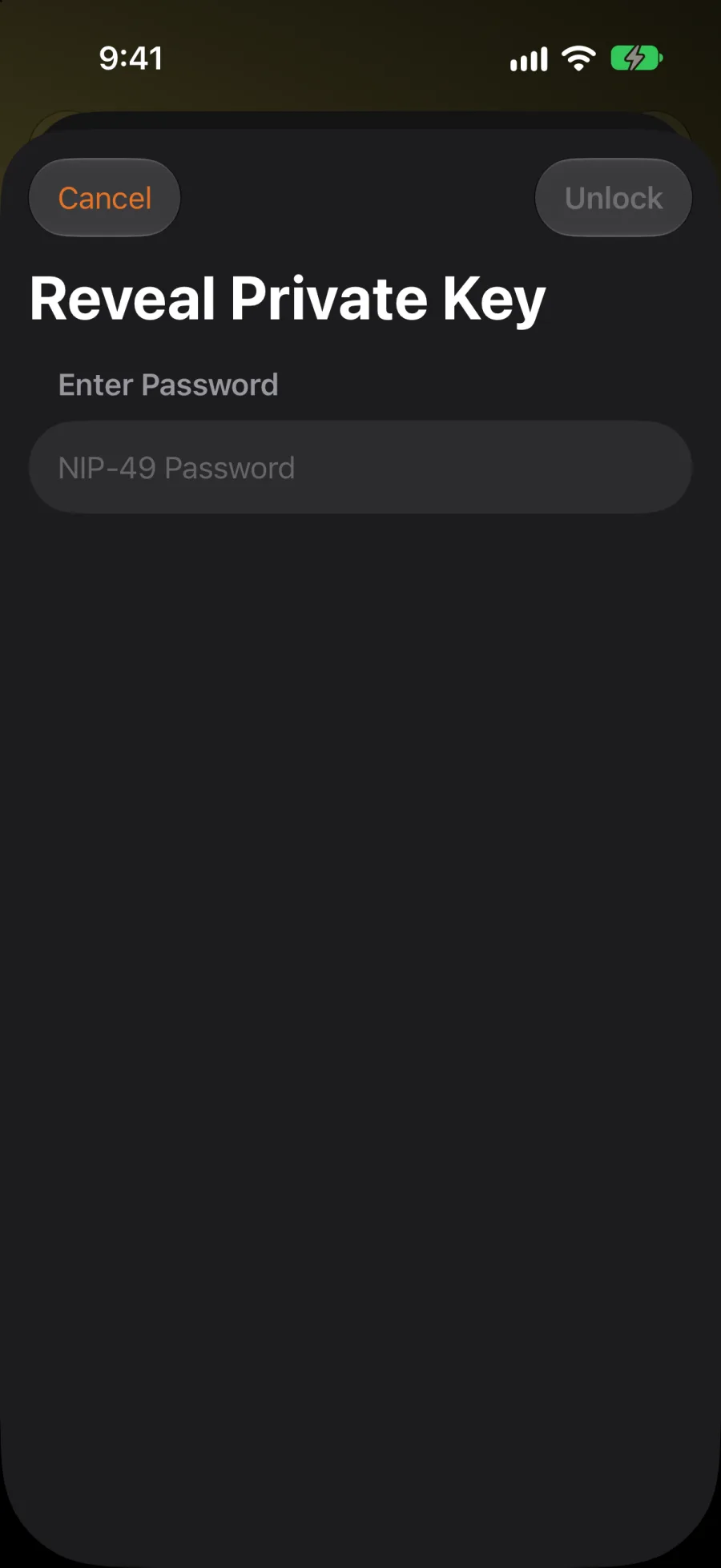
With a signer, there's no key to reveal here. Back it up in the signer app.
Change how an account signs
- Import Private Key adds a local key to an account that only had a public key or a signer. Tick Encrypt with Password to lock it.
- Connect Remote Signer adds a signer. It must hold this account's key; a signer for another account is refused.
- With both, Sign With (Android: Signing) picks which one signs.
Remove a key or an account
- Remove Local Key deletes the secret key from this device. If it's your only copy, it's gone for good.
- Disconnect Remote Signer drops the signer's connection. Reconnecting needs a fresh bunker link.
- Remove Account takes the account, and any key or signer for it, off this device. Nothing on the relays changes, but you need the key again to sign back in.
Publish Relay List
Publish Relay List tells other Nostr apps which relays you read from and write to, so they can find your posts and reach you. Your own relay is always included.
Next
- Signers: Amber, Clave, bunker links and browser extensions.