My Devices is the list of your own phones, Macs, home vault and browser page that reach each other over the mesh. They don't need a public IP or a domain: the mesh finds each device by its key, at home or on mobile data.
Devices on the list sync with each other: your notes, your photos and your history. Anyone not on the list can only read the photos in your public posts.
Turn the mesh on
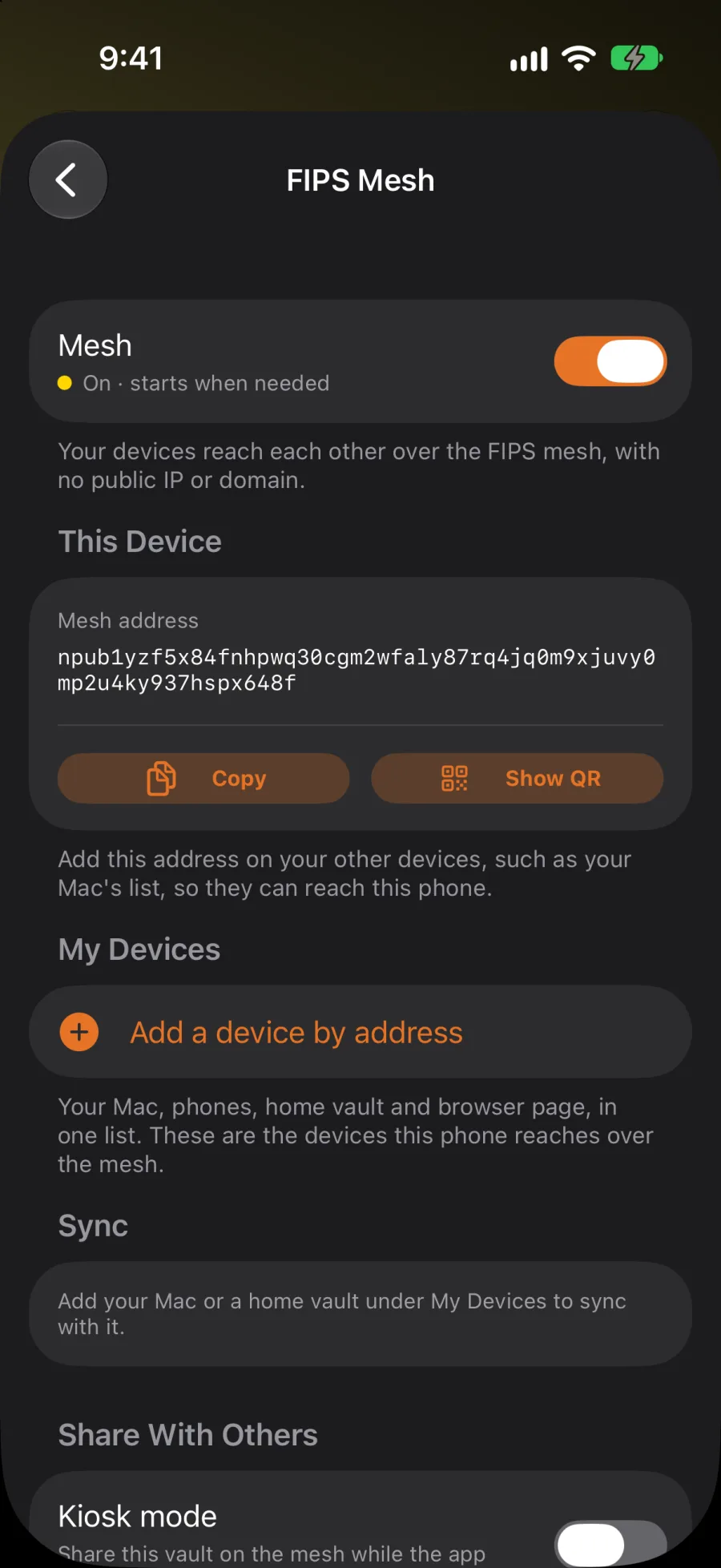
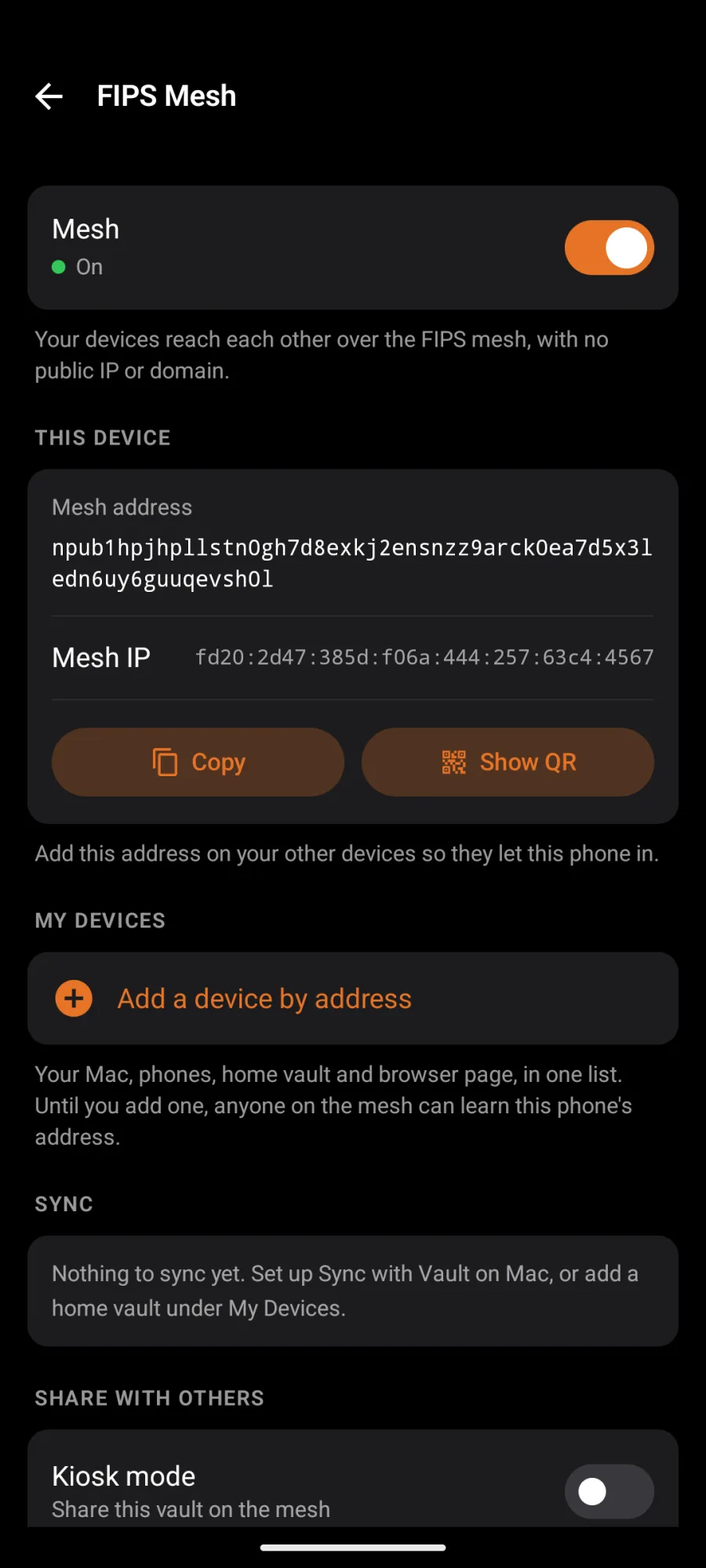
On each device, open Settings → Mesh → FIPS Mesh and switch on
Mesh. Under This Device you'll see its
Mesh address, a long key starting with npub. That's how your other devices
find this one.
Add a device
- On the device you want to add, open FIPS Mesh and, under This Device, tap Copy, or Show QR to scan it from the other device.
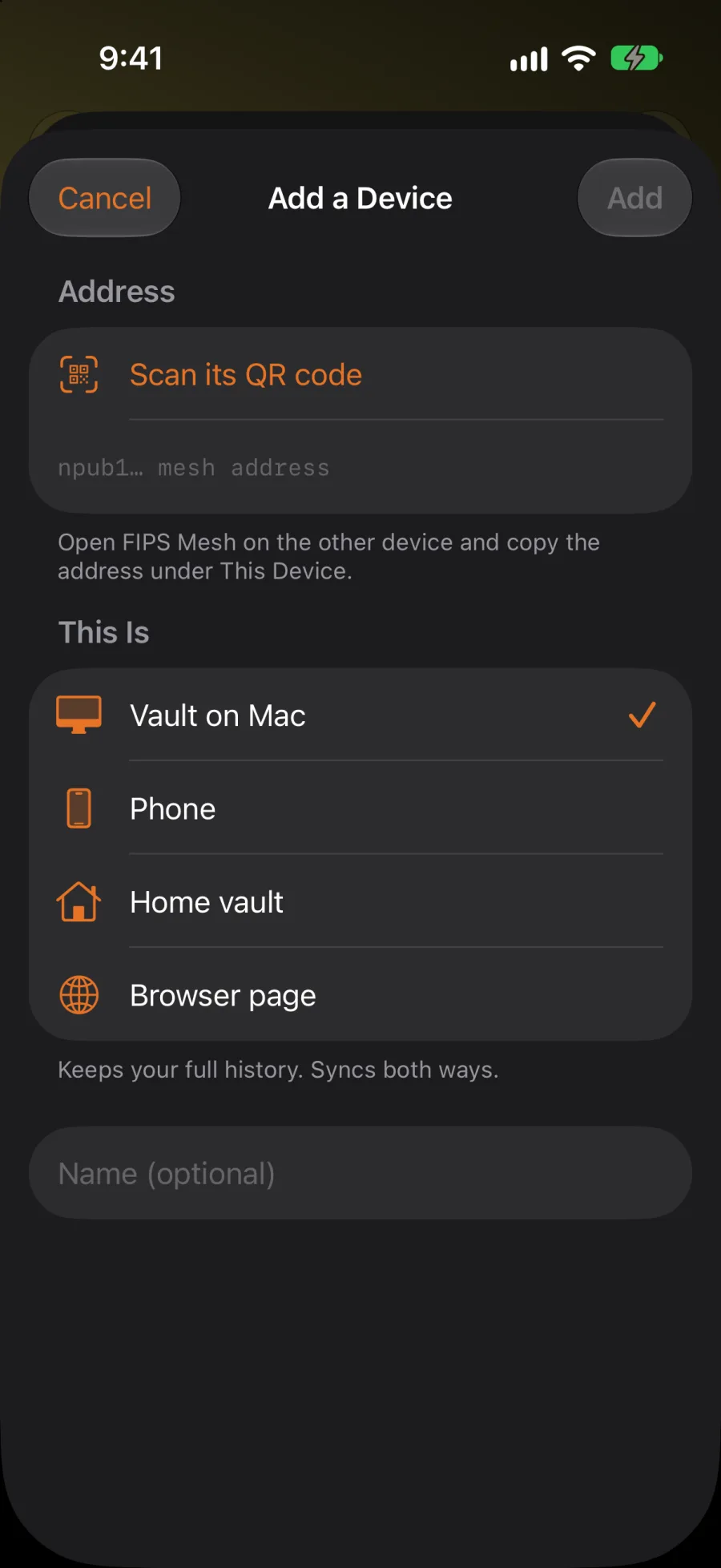
- On the other device, tap Add a device by address. Paste the address, or tap Scan its QR code.
- Under This Is, pick what it is:
- Vault on Mac: Nostr Vault on your Mac. Your new notes and photos go to it, and your history syncs back. See Sync with your Mac.
- Phone: another phone of yours.
- Home vault: a spare phone in kiosk mode that keeps your posts. See Home vault and kiosk mode.
- Browser page: a Nostr Vault page in a browser that keeps a copy of your notes.
- Give it a name if you like, and tap Add.
- Do it in both directions. Add the Mac on each phone, and each phone on the Mac. A device only lets in the devices on its own list.
You're done when both devices show each other as In reach under My Devices. It can take a moment after the mesh turns on.
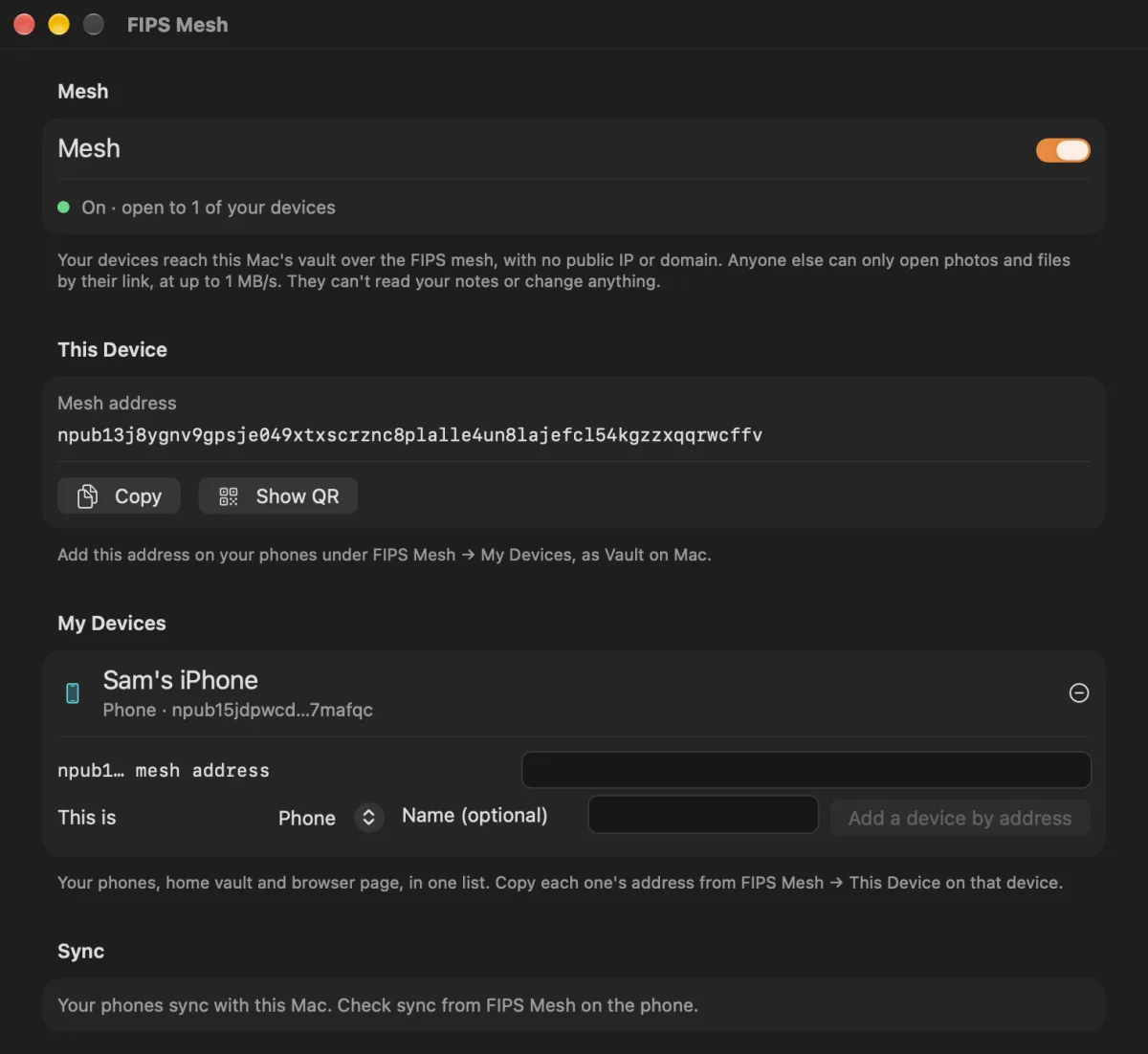
The list
- Each device shows In reach or Not in reach. A Mac is in reach while Nostr Vault is open on it; a phone while the app is open or in kiosk mode.
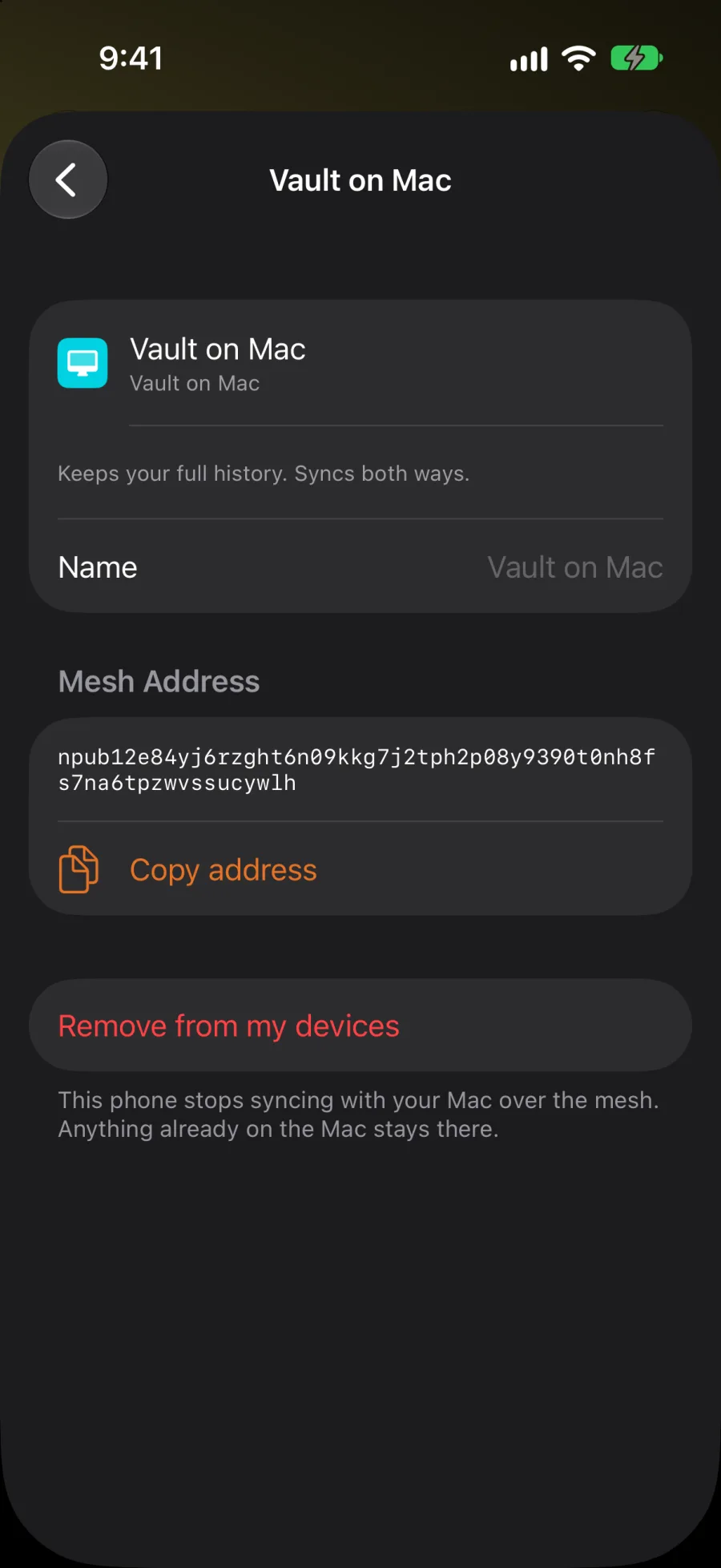
- Tap a device to rename it, copy its address, or remove it. On Android, What It Gets chooses whether it gets Send new notes and Send new media.
- Once a device is on the list, only the devices on the list learn this phone's address. Anyone else on the mesh gets public photos only.