Nostr Vault runs your own Nostr relay on your phone. Your posts, messages and media are kept on the phone, and copies go out to public relays so people can see them.
Install
Nostr Vault needs iOS 17 or later, on an iPhone or an iPad. Join the beta on TestFlight, install it, and open it.
Pick a way in
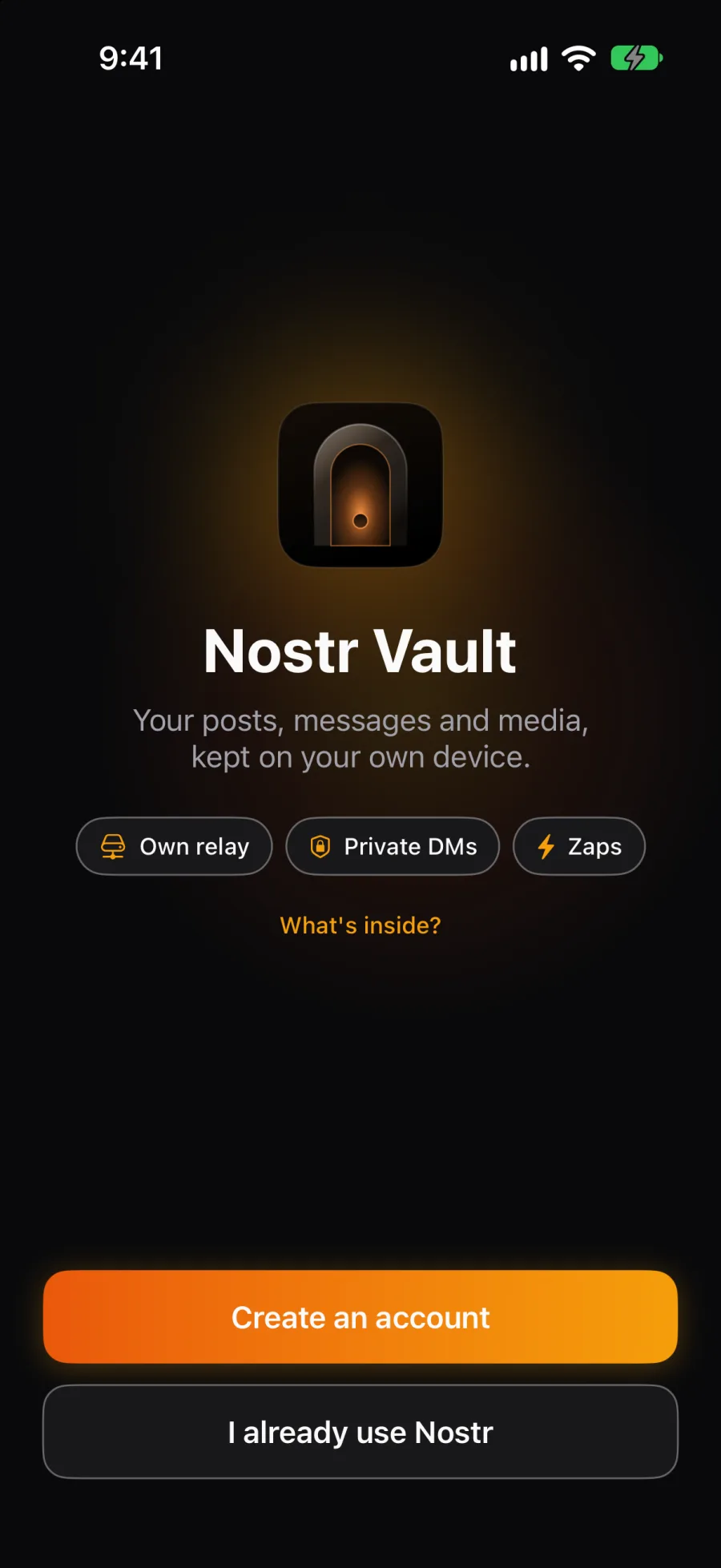
The first screen has two buttons. What's inside? under them lists what the app does.
- Create an account if you're new to Nostr. You get a new key, a password for it and a profile.
- I already use Nostr if you have an account from another Nostr app. You bring that account, and your old notes come home to your phone.
Create an account
- Welcome to Nostr. A short explanation of Nostr and your vault. Tap Create My Account.
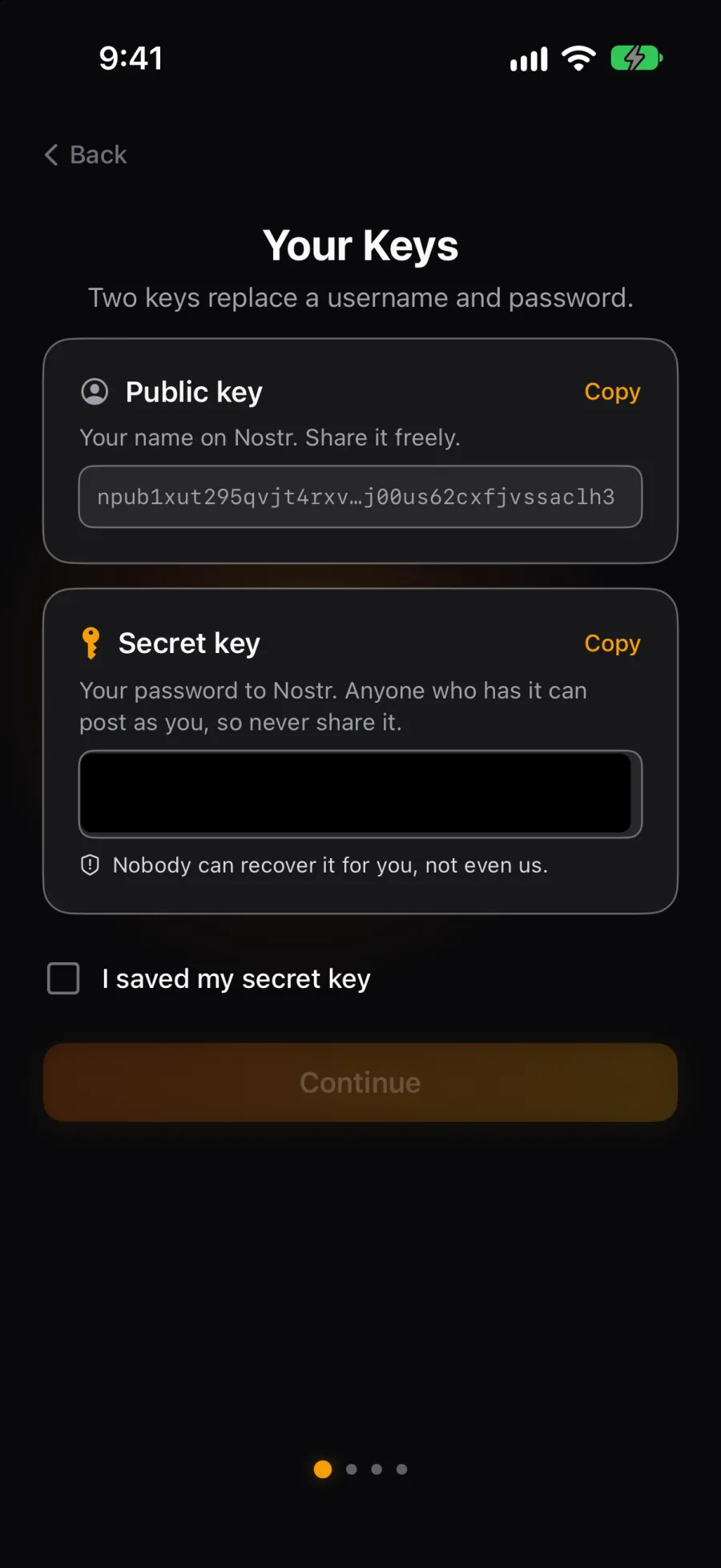
- Your Keys. Two keys replace a username and password. The public key is your name on Nostr; share it freely. The secret key is your password; anyone who has it can post as you. Tap Copy next to the secret key and save it in your password manager. Nobody can recover it for you. Tick I saved my secret key, then Continue.
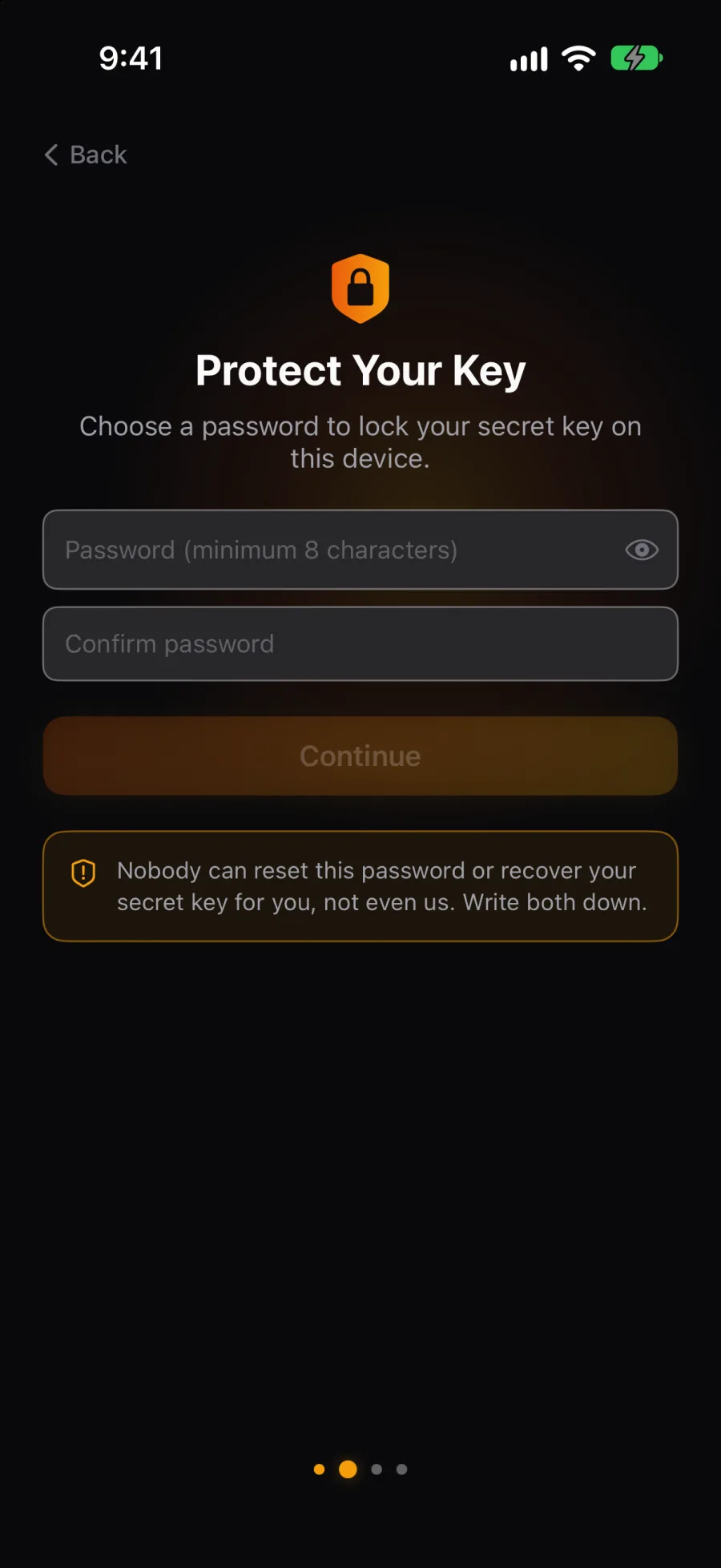
- Protect Your Key. Choose a password of at least 8 characters. This password locks the secret key you just saved. It stays on this device only and is never sent to us or any server. We cannot recover or reset it. If you forget it, the secret key you saved is your only way back in. Write it down and keep it with your secret key.
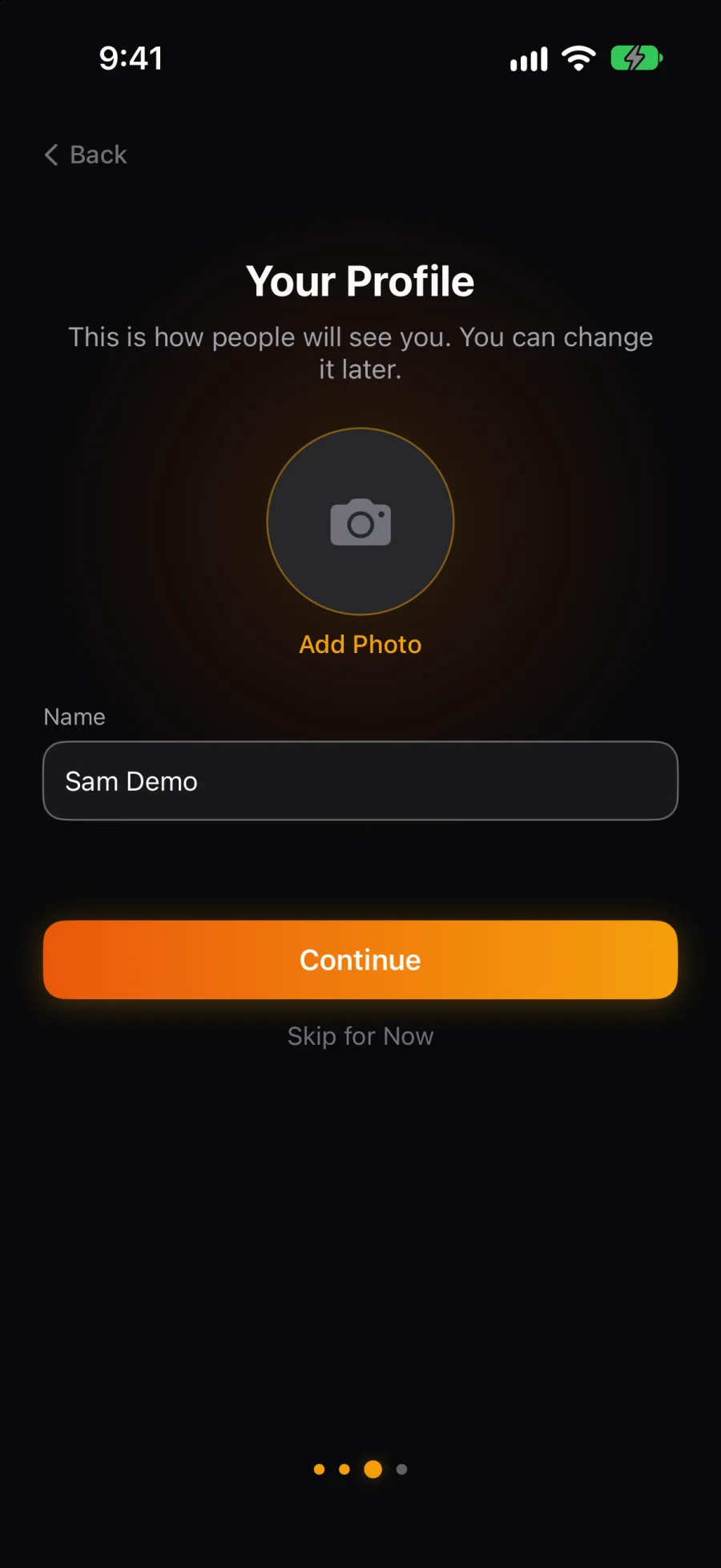
- Your Profile. Add a photo and a name, or tap Skip for Now. You can change both later.
- Welcome to Nostr! Your account is made and your relay is running. Tap Start Exploring.
- Fill your feed. Nostr starts empty: no algorithm picks for you. Tap Let's fill it, pick a few topics, and follow people whose posts you like. Five follows build your web of trust, which fills your feed and filters out spam. Not now skips it.
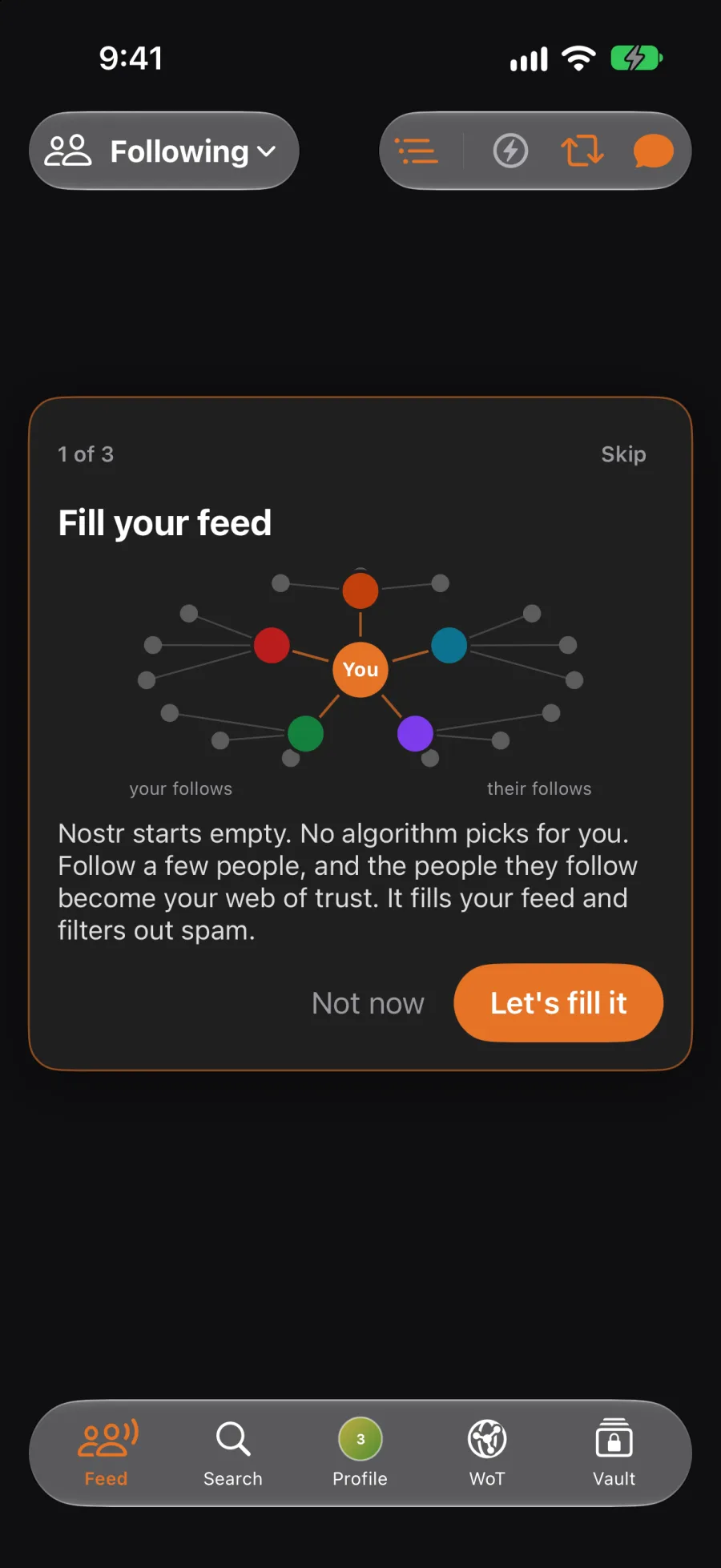
You're done when your Following feed shows posts from the people you followed.
Bring the account you have
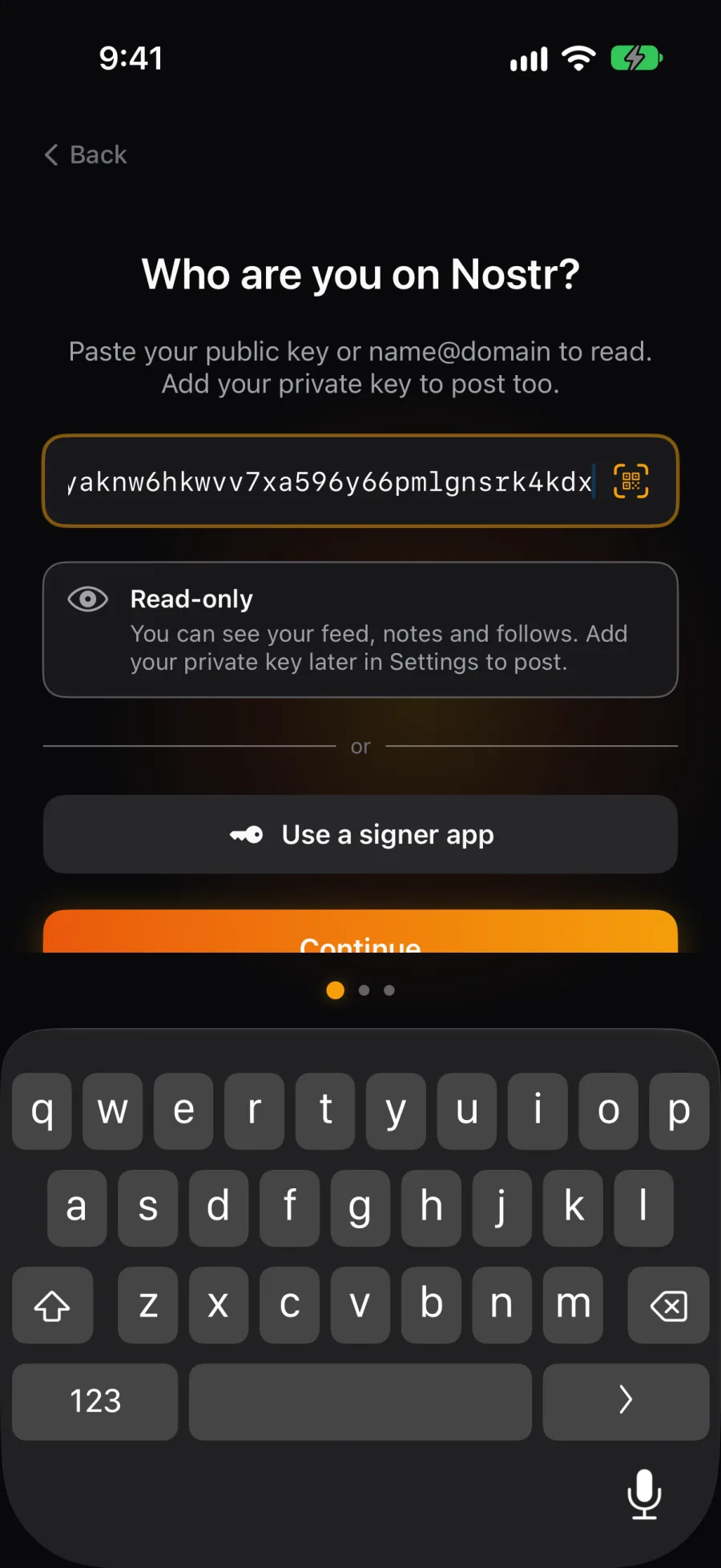
- Tap I already use Nostr. The screen asks Who are you on Nostr?
- Paste one of these into the box, or tap Scan your key or signer link to scan a QR code.
The app tells you what you'll be able to do:
To use a signer app instead, tap Use a signer app, then Sign in with Clave. See Signers.
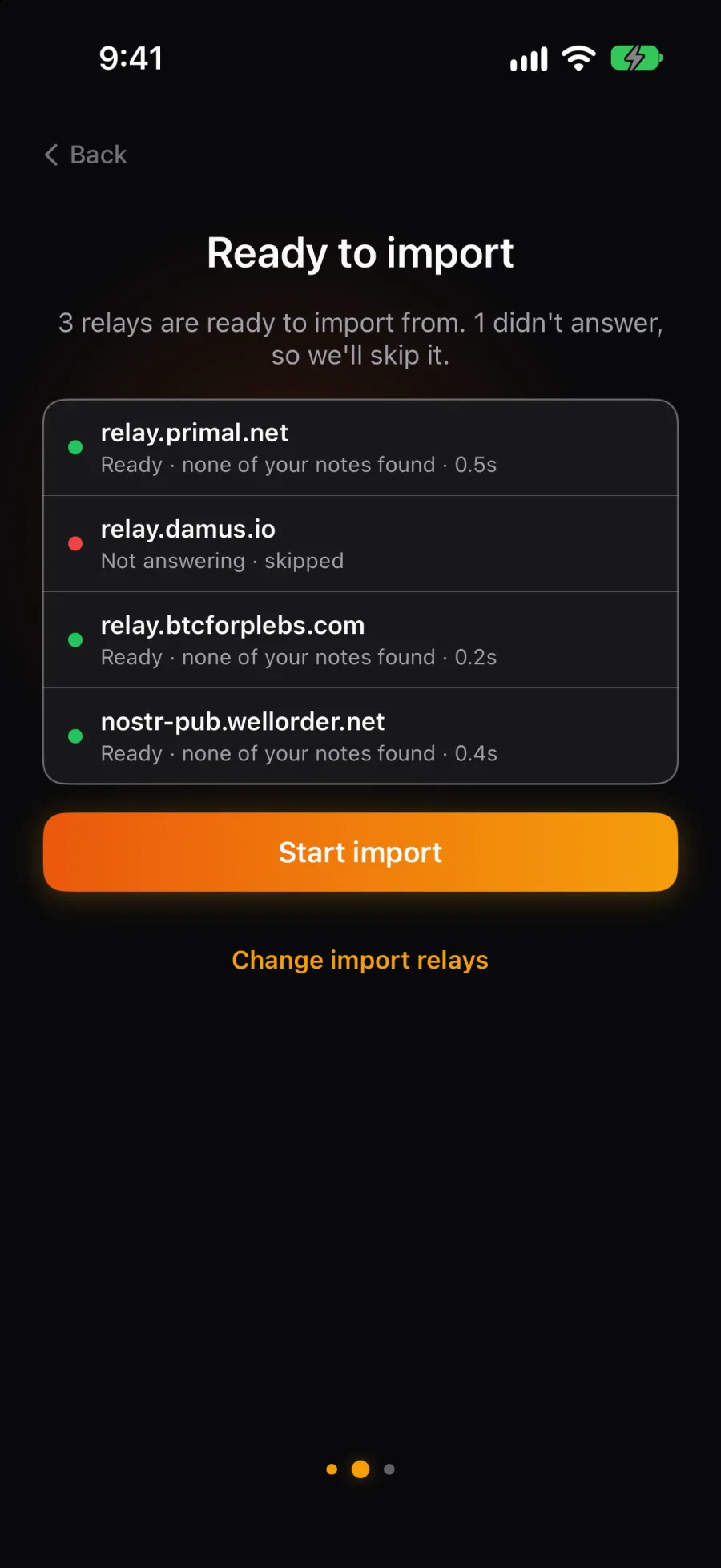
You paste The app shows What you get Your npub, or name@domain Read-only Your feed, notes and follows. Add your secret key later in Settings to post. Your nsec (secret key) You can post Post, reply, DM and zap. You choose a password, and the key is saved encrypted on this phone. It's never sent anywhere. An ncryptsec (a key locked with a password) Encrypted key · you can post Enter the password you locked it with. A bunker:// link from a signer app Signer link · you can post Your signer app approves each post. Your key never touches Nostr Vault. - Checking your relays. The app looks for your notes on your relays. Tap Start import.
- Bringing your notes home. A few cards explain what's happening while your notes are copied to your phone. A long history takes a while. Wait, or tap Keep it running in the background and start using the app; the import carries on.
Pasting a secret key into any app is a risk. A signer keeps the key out of Nostr Vault altogether. If you do paste it, Nostr Vault keeps it encrypted on this phone only.
Who told you about Nostr Vault?
If you create an account, or bring one you can post with, setup asks Who told you about Nostr Vault? It comes after Your Profile, or after Checking your relays. Read-only accounts skip it.
- Tap Scan their profile code, or paste their profile link or npub. Their link comes from Share profile; see Share your profile. If you opened their link before setting up, they're already filled in.
- Check their profile card, and follow them. Not them? Try another goes back.
- Up to 10 people they follow come next, the most followed first, all ticked. Untick anyone you don't want, and follow the rest.
Nobody told you? Tap Skip, nobody told me.
Find your way around
The tab bar along the bottom:
- Feed: posts from the people you follow. Hold the tab and slide up to switch feeds: Following, Discover, Global, Media, Articles and more.
- Search: people, posts and hashtags.
- Profile, in the middle: your profile. The gear at the top opens Settings.
- WoT: your web of trust, the people you follow and the people they follow, on a globe.
- Vault: everything your relay keeps on this phone, and your messages.
On iPad the same places are in the sidebar, Settings included.
Some pages show a short tour the first time you open them. Replay any of them from Settings → Help → Tutorials.
Next
- Your keys and accounts: add another account, back up your key, switch signers.
- The mesh: connect your phone to your Mac and your other devices.